
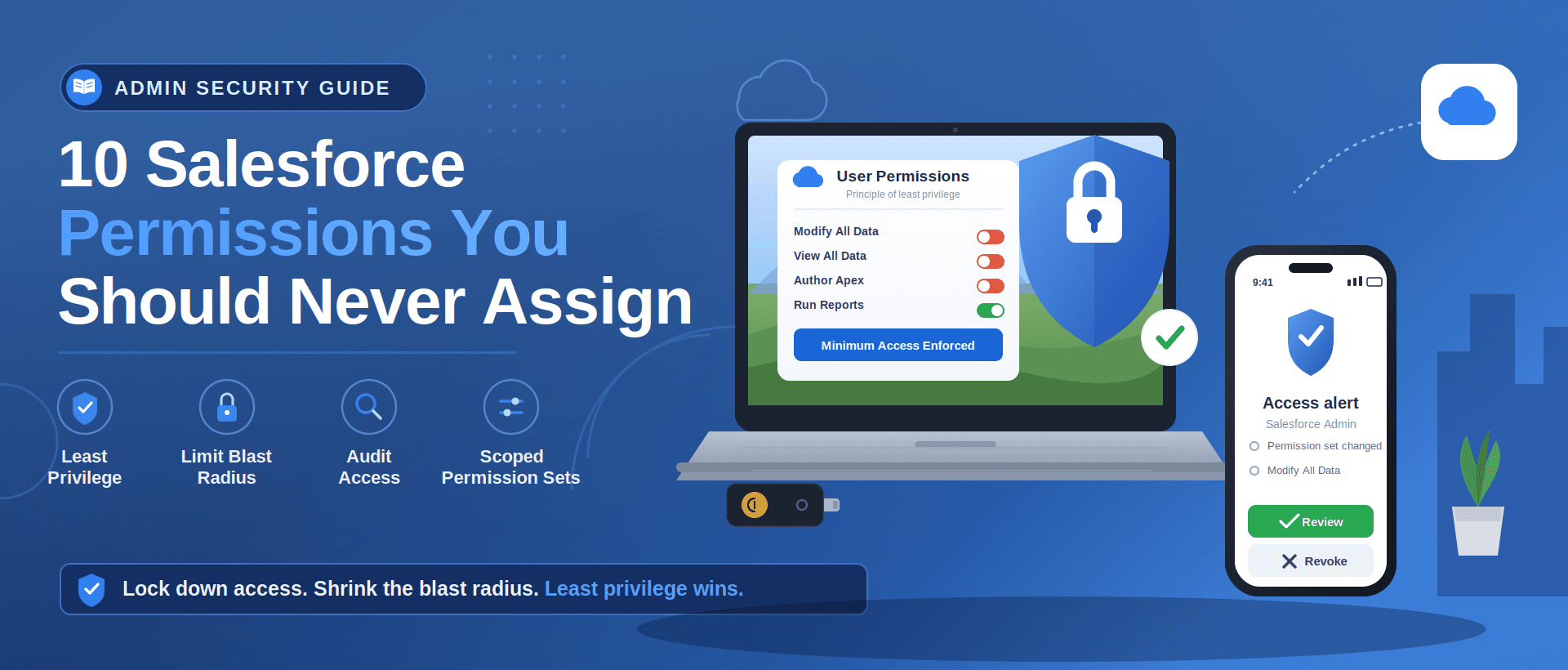
If you have ever inherited a Salesforce org and opened up the profile list, you know the feeling. Forty-seven custom profiles. A hundred and twenty permission sets. A role hierarchy that looks like it was drawn by a committee that never finished the meeting. And somewhere in that pile, a handful of users who can quietly read, edit, or delete every record in the org, and nobody remembers granting it.
This is the part of Salesforce administration that does not show up in a demo. Permissions accumulate the same way clutter accumulates. A user needs something for a project, you grant it, the project ends, and the access stays. Multiply that across a few years and a few admins, and you get what security researchers politely call “over-privileged access.”
And the stakes are higher than they used to be. Throughout 2025, acoordinated wave of social engineering attacks hit dozens of major Salesforce customers, with confirmed victims including Google, Adidas, Chanel, Qantas, and Cisco. The attackers did not break Salesforce.
They used voice phishing to trick employees into authorizing a malicious connected app, then used the access those accounts already had to export large volumes of CRM data. The platform was never compromised. The permissions were. When an account with broad data access gets phished, the blast radius is determined entirely by what that account was allowed to touch.
With Salesforce enforcing MFA changes this summer, now is a great time to audit your users’ permissions, and fast. Some of the permissions mentioned in this article are considered elevated permissions and will require the user to have phishing-resistant MFA enabled. If they don’t need those permissions, it may be easier to remove those than train additional users on how to set this up.
So this article is about restraint. We are going to walk through ten permissions that you should either never assign to standard users or grant so sparingly that each one requires a conversation. For each, we will cover what it actually does, why it is dangerous, and what to give people instead. The guiding idea throughout is the principle of least privilege: give users the minimum access they need to do their job, and nothing more. It is the single most effective security control you have, and it costs nothing but discipline.
A quick note before we start. Everything here assumes you are using a permission set led model, which means your profiles stay lean and you layer extra access through permission sets and permission set groups. If you are still managing access primarily through profiles, you are in good company and also in the majority. Oneanalysis found that over 80 percent of access in the orgs studied was managed at the profile level, against Salesforce’s own recommended model. Moving the dangerous stuff off profiles and onto carefully scoped permission sets is the foundation that makes everything below manageable.
1. Modify All Data
This is the one everybody knows about, and it is still the one that causes the most damage. Modify All Data grants a user the ability to create, read, edit, and delete records across all objects in the org, regardless of sharing settings, role hierarchy, or record-level access. It is the master key.
The problem is not that admins have it. Admins and data stewards need it for legitimate day-to-day work. The problem is how easily it spreads. A user asks for help with a one-time cleanup, someone grants Modify All Data because it is faster than figuring out the precise object access required, and now there is an account with org-wide write access for a task that ended months ago. If that account gets compromised, the attacker inherits the same reach. One stolen credential becomes a catastrophic data breach.
There is also a quieter danger. Modify All Data is destructive by accident as easily as by malice. A bad import, a mistaken bulk update, a Data Loader job pointed at the wrong object, and you are spending a week restoring records instead of doing your actual job. Even with a solidbackup and recovery solution in place, recovery is time you will never get back.
What to give instead: If a power user genuinely needs to manage all records of one or two specific objects, use the object-level Modify All permission on just those objects. It scopes the access to exactly what the role requires instead of handing over the whole org. And be aware that enabling Modify All Data automatically switches on a long list of other permissions underneath it, so the access is broader than the single checkbox suggests.
2. View All Data
If Modify All Data is the master key, View All Data is the all-access pass to the building. It grants read access to every record in the org, regardless of sharing rules. No edit, no delete, just the ability to see everything.
People underestimate this one precisely because it is read-only. It feels harmless next to its destructive sibling. It is not. The 2025 breaches were data theft operations, not data destruction operations. The attackers were not trying to delete your pipeline. They were trying to export it. A user with API access and View All Data can programmatically extract the entire contents of an org in a way that would be completely impractical through the user interface. That combination is exactly what turns a single phished account into a million-record leak.
There is a compliance dimension here too. HIPAA mandates that access be limited to the minimum necessary. GDPR requires access restrictions proportionate to data sensitivity. If you are handling regulated data and you have handed View All Data to a dozen people who only need to see their own region, you are not just carrying security risk. You are carrying audit risk.
What to give instead: Build your sharing model properly so people see the records they need through roles, sharing rules, and groups. When someone needs visibility into a broader slice of data, expand their role or add a sharing rule rather than reaching for the org-wide override. View All on specific objects exists for the rare case where someone needs read access to one full object and nothing else.
3. Manage Profiles and Permission Sets
Here is a question worth asking yourself: Have you ever spotted a permission set in production that you do not remember creating? If the answer is no, it is probably because Manage Profiles and Permission Sets has stayed where it belongs, which is with the Salesforce team and nobody else.
This permission lets a user create, edit, and delete profiles, permission sets, and permission set groups. In other words, it lets them rewrite the access model itself. A user with this permission is not just a user anymore. They are someone who can grant themselves, or anyone else, whatever access they decide they want. The access controls you carefully designed become suggestions.
The danger is rarely dramatic. It is usually someone outside the admin team deciding they can solve their own problem by spinning up a new permission set, without understanding the downstream implications of what they just turned on. They are not malicious. They simply do not have the full picture, and now your access model has a change in it that no one reviewed.
What to give instead: Keep this permission with your core Salesforce administrators. If other people legitimately need to help manage users without touching the access architecture, look at delegated administration, which lets you hand off specific, scoped user management tasks without giving away the keys to the permission model.
4. Manage Users
Manage Users sounds administrative and benign, the kind of thing you might give to a team lead so they can help onboard new hires. It is more powerful than it looks, and it becomes genuinely dangerous in combination with other permissions.
On its own, Manage Users lets someone create and edit user accounts, reset passwords, and modify user details. The risk shows up when you combine it with the ability to manage multi-factor authentication methods for other users. Paired together, those permissions open a path to disable MFA for a specific target account, reset its password, and walk straight in. In a threat landscape where the entire 2025 attack campaign was built on bypassing MFA, anything that lets one user weaken another user’s authentication deserves serious scrutiny.
There is also the impersonation angle. Manage Users is often a stepping stone toward the kind of account control that lets one person operate as another, which muddies every audit trail you depend on.
What to give instead: Reserve full user management for admins. For onboarding help, delegated administration again lets you scope down to exactly the user populations and tasks a team lead should handle, without the broader account-control powers riding along.
5. Author Apex
Author Apex lets a user write and save Apex classes and triggers. If you do not have a reason to give this to someone, and almost no standard business user does, it should be off.
Here is why it matters more than most permission lists suggest. Apex runs on Salesforce servers with direct access to the database, the API, and external callouts. A user who can author Apex can write code that exfiltrates data through HTTP callouts to a server they control, modifies records at scale without going through any user interface, or quietly creates a persistent backdoor that survives long after the account is forgotten. This is not a data-access permission. It is a code-execution permission, and code execution is the highest form of privilege there is.
The reason it flies under the radar is that it looks like a developer concern rather than a security concern. But the line between those two things does not exist when the code runs with this much reach.
What to give instead: Keep Apex authoring confined to your development team and, ideally, to sandbox environments where new code goes through review before it reaches production. Production should receive deployed, reviewed code, not freshly written code from whoever happens to hold the permission.
6. Customize Application
Customize Application is one of the broadest configuration permissions in Salesforce, and it tends to get bundled into “power user” setups without much thought. It lets a user modify a huge range of org configuration, from objects and fields to page layouts to a wide swath of automation and setup.
The risk is twofold. First, it is a change-control problem. Someone with Customize Application can alter the structure and behavior of the org in ways that ripple out to every user, and those changes often happen without anyone reviewing them first. A modified field here, an altered automation there, and suddenly something breaks for the whole team and nobody knows why.
Second, it is one of the permissions that security tooling flags as high-risk, specifically because it grants so much surface area for misconfiguration. The more an account can reconfigure, the more an attacker can do if they take it over.
What to give instead: Confine Customize Application to admins who own the org’s configuration. When a specific team needs a specific capability, grant the narrow permission that delivers it rather than the broad one that delivers everything.
7. Export Reports
This is the permission people are most surprised to see on a list like this, because exporting a report feels like the most ordinary thing in the world. And for a sales rep pulling their own pipeline into a spreadsheet, it is. But Export Reports deserves a deliberate decision rather than a default yes, and here is the reasoning.
Exporting a report takes data that lives inside Salesforce, where it is governed by your security model, and writes it into an uncontrolled file on someone’s laptop, where it is governed by nothing. Once that .xlsx or .csv leaves the building, your sharing rules, your field-level security, and your audit logging no longer apply to it.
For orgs handling financial records, healthcare information, or any kind of PII, that is a meaningful loss of control. Some compliance frameworks require auditing every data export precisely because the export is the moment data escapes your governance.
It is worth understanding how this permission interacts with the rest of your reporting setup. Export Reports requires Run Reports, but it does not require Create and Customize Reports, meaning a user can export a report that they cannot even edit. If you want the full picture of how these interlock, we wrote acomplete breakdown of every report permission and how they depend on one another.
What to give instead: Grant Export Reports to the roles that genuinely need offline analysis, and withhold it from everyone else. An analyst who builds reports needs the permission. A manager who reads dashboards on screen usually does not.
8. Manage Auth. Providers
This is the permission almost nobody talks about, which is exactly what makes it worth talking about. Manage Auth. Providers lets a user configure how the organization authenticates its users, including the external identity providers and authentication flows that sit at the front door of your entire org.
Modify All Data is dangerous because it touches all your records. Manage Auth. Providers is arguably just as dangerous because it touches how everyone proves they are who they say they are. A user with this permission could reconfigure authentication in ways that undermine your login security across the board, and because it sits in a corner of setup that most admins rarely visit, the change might not be noticed for a long time. It is high-risk access that does not look high-risk, which is the worst combination.
What to give instead: This belongs exclusively with the small group responsible for your org’s identity and security architecture. There is no standard business role that needs to reconfigure authentication providers, so the default for everyone else is a flat no.
9. Password Never Expires
Password Never Expires is a convenience permission, and convenience permissions are where security quietly erodes. It exempts a user from your org’s password expiration policy, so their password stays valid indefinitely.
This is often applied to integration and service accounts to prevent automations from breaking when a password rotation occurs. The intent is understandable. The result is a set of accounts, frequently with broad access, whose credentials never change. The 2025 attack wave was built substantially on stolen and reused credentials and long-lived tokens that let attackers stay authenticated without ever triggering a fresh login. A password that never expires is a credential with an unlimited shelf life, and unlimited shelf life is exactly what a patient attacker is hoping to find.
The accounts that tend to receive this permission are often the same accounts that carry elevated access for integrations, which compounds the problem. You end up with the highest-access, longest-lived credentials in the org, sitting in one convenient bundle.
What to give instead: For integration and service accounts, move toward modern authentication patterns built on OAuth and short-lived tokens rather than static passwords that never rotate. Short-lived credentials shrink the window an attacker can exploit, and rotation means a leaked secret has an expiration date instead of a lifetime.
10. View All Users
We end with a subtle one. View All Users does not touch your business data at all. It grants a user visibility into every user record in the org, which, in a tightly controlled environment, is more than you might want to expose.
The reason this matters is reconnaissance. The 2025 social engineering campaigns did not begin with a technical exploit. They began with research. Attackers studied org structures, identified who worked where, and used that knowledge to make their impersonation calls convincing enough that employees authorized malicious apps.
A full directory of every user, their roles, and their reporting relationships is a head start for exactly that kind of targeting. In an org with restricted user visibility, View All Users hands over a map that you might prefer an attacker have to build from scratch.
To be clear, this is the lowest-severity item on the list, and plenty of orgs run perfectly well with broad user visibility. The point is simply that it is a decision, not a default. In environments handling sensitive data or facing elevated threats, restricting who can enumerate the full user base is one more small way to make an attacker’s job harder.
What to give instead: Lean on your org’s user visibility settings to scope who can see whom, and grant broader visibility only where a role actually requires it.
How to Find the Dangerous Permissions You Already Have
Reading a list like this naturally raises the question of how many of these are already loose in your own org. The honest answer is that you cannot know until you look, and most orgs have more than their admins expect.
The fastest place to start is the View Summary button on a user’s detail page, which gives you a quick read on the high-risk permissions a given user holds without clicking through every permission set assigned to them. It will not always tell you which specific permission set granted a given permission, so some cross-checking remains, but it dramatically cuts the time to answer “why on earth can this person delete records?”
For a more systematic pass, Salesforce offers a free app on the AppExchange called the User Access and Permissions Assistant, which lets you report by user, permission set, or permission set group and surfaces who holds the genuinely dangerous permissions like Modify All Data. If you want to go straight to the source, both the ObjectPermissions and PermissionSetAssignment objects are queryable with SOQL through the Developer Console or the API, which gives you direct access to the underlying permission metadata.
Whatever tool you use, the exercise is the same. Map every high-risk permission against the roles that actually need it, find the gaps, and close them. The permissions that matter most to audit first are the org-wide overrides at the top of this list, because those are the ones that turn a single compromised account into an org-wide incident.
A Few Principles to Carry Forward
If you take nothing else from this, take the habit of treating every permission grant as a deliberate decision rather than a convenience. The clutter that builds up in a Salesforce org is never the result of one bad call. It is the result of a hundred small “just this once” grants that nobody ever revisited.
Start from the Minimum Access profile and add capability through permission sets, so your baseline is restrictive and every elevation is intentional and visible. Build permission set groups around real job functions so access maps to roles instead of accumulating per person. Run a permission audit on a schedule, not just when a compliance officer asks, because access drifts continuously as people change teams and projects end. And document why each elevated grant exists, so the next admin who inherits the org understands the reasoning instead of being afraid to touch anything.
The underlying truth is that Salesforce security is not a configuration you set once. It is a discipline you practice. The orgs that stay secure are the ones where someone keeps asking the only question that really matters: does this person actually need this access to do their job? If the answer is no, or even “I am not sure,” that is your answer.
If you are staring at a tangle of profiles and permission sets and you are not sure where to begin, or you want a second set of eyes on a permission audit before an upcoming compliance review,reach out to the CloudAnswers team. We have been helping Salesforce teams get access and security right for over 15 years, and we are happy to help you sort out who should have the keys.
Related Articles
7 Popular Reporting Apps for Salesforce
The profit of your entire Salesforce investment depends a lot on the…
May 18, 2026
9 Min Read
How to Build a Salesforce Backup Strategy: What to Back Up, How Often, and Where to Store It
If you’ve ever read a blog post about Salesforce backup that left…
April 30, 2026
16 Min Read
Salesforce Data Recovery Without a Backup: What Your Options Actually Are After Accidental Deletion
It happens to every Salesforce admin eventually. Maybe a user ran a…
April 24, 2026
12 Min Read

Partners

Company
Get in touch
Locations: New Hampshire, India, Maine, Colorado, Poland, Ukraine, Belarus
Email: help@cloudanswers.com
Phone: +1 508 500 8333