Salesforce Report Permissions Deep Dive: Every Permission That Affects Creating, Scheduling, and Sending Reports
18 min read
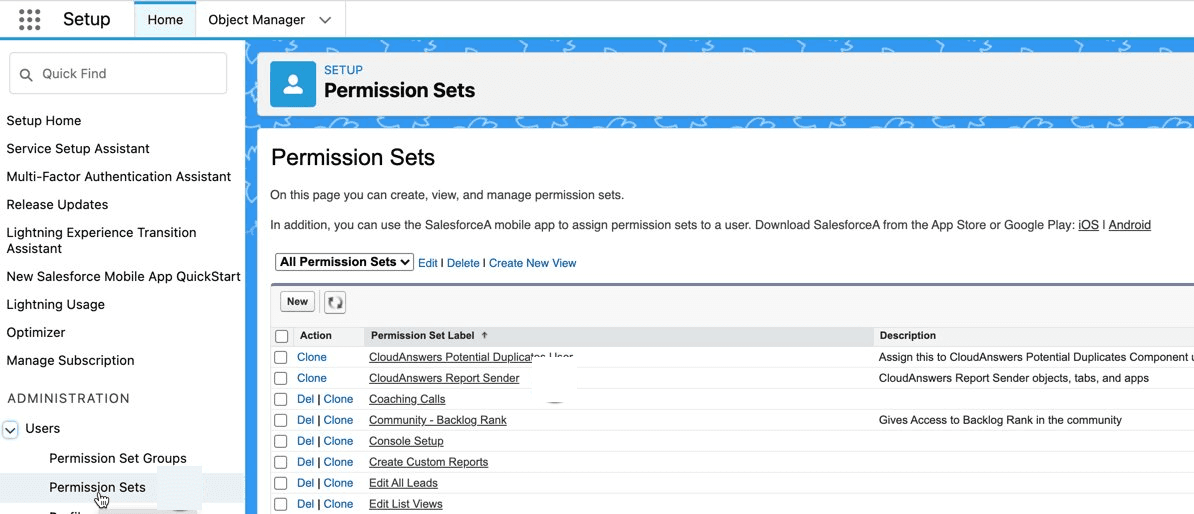
If you’ve ever had a user come to you and say, “I can’t see the Reports tab,” or “the Export button is missing,” or “why can’t I schedule this report?” — you know that Salesforce report permissions are one of those topics that seem simple on the surface and turn out to be surprisingly layered underneath.
Salesforce has over a dozen separate permissions that affect what users can do with reports. Some of them have dependencies on other permissions. Some of them interact with folder-level access in ways that aren’t obvious. And if you’re working with report subscriptions, there’s a whole additional set of permissions that control who can receive reports, how data visibility works, and what running user context applies.
This is the complete reference: every permission that affects creating, running, exporting, scheduling, and sending reports — what each does, what it depends on, and where it trips people up.
The Foundation: User-Level Report Permissions
These are the core permissions that control what a user can do with reports across the org. They live in Profiles and Permission Sets under the “General User Permissions” or “System Permissions” section.
Run Reports
This is the bedrock permission. Without “Run Reports,” a user cannot open any report in Salesforce — period. Clicking the Reports tab or navigating directly to a report URL produces an “Insufficient Privileges” error.
What it controls: The ability to view and run existing reports.
Dependencies: None. This is the base permission that several other report permissions depend on.
Key detail: “Run” in Salesforce means “open and execute the report with current data.” There’s no concept of viewing a report without running it — every time you open a report, Salesforce queries live data.
Common gotcha: If a user can see the Reports tab but gets an error when clicking on a specific report, the issue is usually folder access (covered below), not the Run Reports permission. If they can’t see the Reports tab at all, check that the Reports tab is visible in their app and profile settings — that’s a separate configuration from the Run Reports permission.
Create and Customize Reports
This permission controls whether a user can create new reports or modify existing ones. Without it, the “New Report” button doesn’t appear on the Reports tab, and users can’t edit report filters, columns, groupings, or chart settings.
What it controls: Creating new reports, editing report structure (columns, filters, groupings, charts), and saving changes to reports.
Dependencies: Requires “Run Reports.” If you disable Run Reports, Create and Customize Reports is automatically disabled too. Enabling Create and Customize Reports auto-enables Run Reports.
Key detail: This permission alone doesn’t determine where a user can save reports. That’s controlled by folder access and the “Edit My Reports” permission (covered next). A user with Create and Customize Reports can always save reports to their personal “My Reports” folder, but saving to shared folders depends on additional permissions.
Edit My Reports
This one catches people off guard. “Edit My Reports” lets a user edit, move, save, and delete reports they created in shared folders — even if they only have Viewer access to that folder.
What it controls: Editing and managing reports the user created, regardless of folder-level access.
Dependencies: Requires “Create and Customize Reports” (which in turn requires “Run Reports”).
Key detail: The name is misleading. “My Reports” doesn’t refer to the My Reports personal folder — it refers to reports created by that user in any folder. A user with this permission and Viewer access to a shared folder can still edit their own reports in that folder. Without this permission, Viewer access means truly read-only — even for reports the user created.
Common gotcha: This permission is the one that causes the most confusion during user security design. When an admin says “I gave them Viewer access but they can still edit reports,” it’s almost always because Edit My Reports is enabled on their profile.
Manage Public Reports
This is the legacy admin-level permission for report management. With Enhanced Folder Sharing enabled (which is the default for all orgs created after Summer ’13), this permission translates into two things: the ability to create report folders and the ability to edit any report in any folder the user can access — not just reports they created.
What it controls: Creating report folders and editing all reports in accessible folders.
Dependencies: Requires “Create and Customize Reports.”
Key detail: In orgs with Enhanced Folder Sharing, folder-level access (Viewer, Editor, Manager) is the primary control mechanism. But Manage Public Reports still functions as an override that grants broad editing capability. Be cautious about who gets this permission — it’s essentially Editor access to every report folder the user can see.
Create Report Folders
This permission does exactly what the name says: it lets users create new report folders. Without it, the option to create folders doesn’t appear in the Reports interface.
What it controls: Creating new report folders.
Dependencies: Requires “Create and Customize Reports.”
Key detail: Creating a folder and sharing a folder are different permissions. A user can create a folder but may not be able to control who else can access it unless they also have Manager access to that folder (which they get by default as the folder creator).
Export and Data Permissions
Export Reports
This controls whether users see the “Export” option when viewing a report. When enabled, users can export report data to Excel (.xlsx) or CSV format.
What it controls: Exporting report data to spreadsheet files.
Dependencies: Requires “Run Reports.” Does not require “Create and Customize Reports” — a user can export a report they can’t edit.
Security consideration: This is one of the most sensitive report permissions from a data security perspective. Exporting a report extracts data from Salesforce into an uncontrolled file on the user’s device. For orgs handling sensitive data (financial records, healthcare information, PII), carefully consider who gets Export Reports access. Some compliance frameworks require auditing all data exports.
Common gotcha: If a user can run a report but the Export button is missing, this permission is the one to check. It’s a common support request that’s easy to resolve.
Scheduling and Subscription Permissions
This is where Salesforce report permissions get genuinely complicated. There are five separate permissions that control different aspects of report scheduling and subscriptions, and they interact with each other in ways that matter for data security.
Schedule Reports (Classic)
This permission controls the ability to schedule reports in Salesforce Classic using the “Schedule Future Runs” option. Scheduled reports run on a recurring basis and are emailed to specified recipients.
What it controls: Scheduling reports for recurring email delivery in Classic.
Dependencies: Requires “Run Reports.”
Key detail: Salesforce Classic report scheduling and Lightning report subscriptions are different systems with different permissions. If your users work in Lightning (which is most people at this point), the Subscribe permissions below are what you need.
Limits to know: An org is limited to 200 scheduled reports and dashboards combined (Classic). Scheduled reports run in the time zone of the user who created the schedule. The running user on the schedule determines what data recipients see — which can bypass individual users’ sharing settings. You need “View All Data” to specify a running user other than yourself.
Subscribe to Reports (Lightning)
This is the Lightning equivalent of scheduling. It lets users subscribe to a report so they receive it automatically via email, either on a schedule or when data meets certain conditions.
What it controls: Subscribing to reports for automated email delivery in Lightning Experience.
Dependencies: Requires “Run Reports.”
Limits to know: Subscription limits vary by Salesforce edition. The original limit was 5 per user across all editions. Salesforce subsequently raised it to 7 for most editions, and in the Spring ’23 release raised the Unlimited Edition limit from 7 to 15. Current limits: up to 7 report subscriptions for most editions, up to 15 for Unlimited Edition. These numbers have changed multiple times, so verify your edition’s current limits in Salesforce Help. An org can have up to 500 report subscriptions firing in a given hour. Subscriptions don’t support joined reports or historical tracking reports.
Subscribe to Reports: Add Recipients
By default, when a user subscribes to a report, they can only subscribe themselves. This permission lets them add other individual users as recipients of the subscription.
What it controls: Adding other Salesforce users as recipients of a report subscription.
Dependencies: Requires “Subscribe to Reports.”
Key detail: Subscription recipients aren’t listed on the report subscription emails — recipients won’t see who else received the same report. To check who’s subscribed to a given report, you need to go back to the subscription settings in Salesforce.
Subscribe to Reports: Send to Groups and Roles
This extends the Add Recipients capability to include roles, roles & subordinates, and public groups — not just individual users. This is how you set up a report subscription that reaches an entire team or department.
What it controls: Adding roles, roles & subordinates, and public groups as report subscription recipients.
Dependencies: Requires “Subscribe to Reports.”
Key detail: Recipient lists for roles and groups are evaluated at send time, so if someone is added to or removed from a role or group, the subscription automatically updates. Salesforce sends a maximum of 500 emails per subscription. Note that each recipient entry (a role, role & subordinates, or group) can contain many individual users, so a single group entry could represent hundreds of people. If the total number of individual users across all recipient entries exceeds 500, Salesforce sends emails according to this priority: individual users first, then roles, then roles & subordinates, then groups — and stops at 500.
Subscribe to Reports: Set Running User
This is the permission that controls data visibility for subscription recipients. When enabled, the user setting up the subscription can specify a “running user” whose data access determines what the report shows — regardless of each recipient’s individual sharing settings.
What it controls: Specifying whose data access is used when generating the subscribed report.
Dependencies: Requires “Subscribe to Reports.”
Security consideration: This is a powerful permission. If a user with broad data access (like a VP of Sales) is set as the running user, every recipient sees the report through that VP’s lens — even if their own sharing settings would normally restrict them from seeing certain records. This is useful for giving teams visibility into aggregated data while maintaining record-level security, but it can also inadvertently expose data if misconfigured.
Common gotcha: Without “View All Data,” a user can only set themselves as the running user. To set a different running user, they need View All Data — which is a very broad permission that should be granted sparingly.
Folder-Level Access: The Other Half of the Equation
User-level permissions determine what actions a user can perform with reports. Folder-level access determines which reports they can perform those actions on. Both layers must align for a user to do what they need to do.
Salesforce uses Enhanced Folder Sharing with three access levels for report folders.
Viewer
Can see the folder in the folder tree and run any report in it. Cannot edit, move, or delete reports in the folder (unless they created the report and have the Edit My Reports permission — see above).
Editor
Everything a Viewer can do, plus: edit all reports in the folder, add new reports to the folder, and delete reports from the folder. This is the level you typically assign to power users, analysts, and team leads who need to maintain shared reports.
Manager
Everything an Editor can do, plus: modify the folder’s sharing settings (who has access and at what level). This is the level for admins and the report folder owners.
How Folder Access and User Permissions Interact
Here’s where things get nuanced. A user’s effective capabilities with a specific report are determined by the combination of their user-level permissions and their folder-level access. Some examples:
A user with “Create and Customize Reports” + Viewer access to a folder can run reports in that folder and save new reports to it — but can’t edit existing reports in that folder (unless they created them and have Edit My Reports).
A user with Editor access to a folder but without “Create and Customize Reports” at the user level can’t actually edit reports — the folder access alone isn’t sufficient without the corresponding user permission.
A user with “Manage Public Reports” + Viewer access to a folder can effectively act as an Editor on that folder, because the user-level permission overrides the folder-level restriction.
The rule of thumb: folder-level access sets the ceiling, but user-level permissions determine whether the user can actually reach it. Always check both layers when troubleshooting.
The Hidden Permissions: Object and Field-Level Security
There’s a third layer that affects what data appears in reports, even when the user has all the right report permissions and folder access. Object-level and field-level security determine whether specific objects and fields are available in reports.
If an object is hidden from a user’s profile, reports containing that object won’t show data from it (or may not be runnable at all if it’s the primary report object). Similarly, if a field is hidden via field-level security, that field won’t appear in report results — even if the report includes it.
This matters most when a report created by an admin (who can see everything) is shared with standard users who have restricted object or field visibility. The report runs, but the results may look different for different users depending on their data access.
Report Type Permissions
Custom report types add another layer. When you create a custom report type, you specify which profiles can use it. If a user’s profile doesn’t have access to the report type, they can’t create reports based on it — even if they have Create and Customize Reports enabled.
Standard report types (Accounts, Contacts, Opportunities, etc.) are generally available to anyone with the corresponding object access, but custom report types require explicit assignment.
Practical Scenarios: Putting It All Together
Let’s walk through some common permission configurations and what they enable.
“I just need to view reports, not create them”
Give them: Run Reports + Viewer access to the relevant report folders. That’s it. They can open and run reports but can’t create, edit, export, or subscribe.
“I need to create reports and share them with my team”
Give them: Run Reports + Create and Customize Reports + Create Report Folders. Give them Editor or Manager access to the folders they’ll use for shared reports. If they should also be able to save over their own reports in shared folders, add Edit My Reports.
“My sales managers need a weekly pipeline report emailed to their team”
Give them: Run Reports + Subscribe to Reports + Subscribe to Reports: Add Recipients. If they need to send to entire roles or groups, add Subscribe to Reports: Send to Groups and Roles. If the report needs to show data from a broader perspective than the manager’s own access, add Subscribe to Reports: Set Running User — but be aware this requires View All Data to set a running user other than themselves.
Alternative: If the native subscription limits (7 per user — or 15 in Unlimited Edition — plus no external recipients and no email customization) are too restrictive, Report Sender removes those limits and adds the ability to send reports to non-Salesforce users, customize the email message, and choose from more scheduling options.
“I need to export data for analysis in Excel”
Give them: Run Reports + Export Reports. They don’t need Create and Customize Reports unless they also need to build the reports themselves.
“Our admin team needs full control over all reports and folders”
Give them: All of the above, plus Manage Public Reports. This gives them the ability to create folders, edit any report in any accessible folder, and manage sharing settings on folders they have Manager access to.
Limits Worth Knowing
Beyond permissions, Salesforce imposes several limits on reporting that often get confused with permission issues:
Each user can subscribe to a maximum of 7 reports and 7 dashboards in Lightning, or 15 each in Unlimited Edition. These limits have increased over time (the original cap was 5), so verify your edition’s current limits in Salesforce Help if you’re unsure.
An org can have up to 200 scheduled reports and dashboards combined (Classic). This is a shared pool — dashboards count against the same limit as reports.
An org can have up to 500 report subscriptions and 500 dashboard subscriptions firing in a single hour.
For Classic scheduled reports, emailed reports can be up to 10 MB (per Salesforce’s official limits documentation). For Lightning subscription attachments, the limits are tighter: up to 3 MB, 15,000 rows, and 30 columns — anything beyond that is clipped or not sent. Reports larger than these limits need to be filtered or narrowed.
The scheduled report running user must be active — if the running user is deactivated, Salesforce notifies admins and the schedule stops.
You need View All Data to specify a running user other than yourself.
The report viewer displays a maximum of 2,000 rows on screen. Export limits depend on the export type: Formatted Report (XLSX) is capped at the same 2,000 rows and 100 columns as the display; Details Only (XLSX) supports up to 100,000 rows and 100 columns; and Details Only (XLS or CSV) supports unlimited rows and columns.
Two important exceptions: joined reports with more than 2,000 rows cannot be exported (and can only be exported as Formatted Report, not Details Only), and historical trending reports cannot be exported at all. If your users need to export large datasets, make sure they’re selecting Details Only rather than Formatted Report — otherwise they’ll still hit the 2,000-row ceiling.
For organizations that consistently hit these limits — especially the subscription-per-user cap and the inability to send reports to non-Salesforce users — tools like Report Sender exist specifically to remove these ceilings. It’s a common pain point that we’ve written about before.
A Quick-Reference Permission Matrix
Here’s a condensed view of the key report permissions and their dependencies:
Run Reports — Foundational permission. Required by all other report permissions. No dependencies.
Create and Customize Reports — Create new reports, edit existing ones. Requires: Run Reports.
Edit My Reports — Edit your own reports in shared folders. Requires: Create and Customize Reports.
Manage Public Reports — Create folders, edit any accessible report. Requires: Create and Customize Reports.
Create Report Folders — Create new report folders. Requires: Create and Customize Reports.
Export Reports — Export to Excel/CSV. Requires: Run Reports.
Schedule Reports (Classic) — Schedule recurring email delivery. Requires: Run Reports.
Subscribe to Reports (Lightning) — Subscribe for automated delivery. Requires: Run Reports.
Subscribe to Reports: Add Recipients — Add individual users to subscription. Requires: Subscribe to Reports.
Subscribe to Reports: Send to Groups and Roles — Add roles/groups to subscription. Requires: Subscribe to Reports.
Subscribe to Reports: Set Running User — Control data visibility for recipients. Requires: Subscribe to Reports. Needs View All Data to set a running user other than yourself.
Troubleshooting Checklist
When a user reports a problem with Salesforce reports, work through this checklist in order:
Can they see the Reports tab? Check tab visibility in their app assignment and profile.
Can they open any report? Check the Run Reports permission on their profile or permission sets.
Can they open the specific report? Check their folder-level access (Viewer, Editor, or Manager) on the folder containing that report.
Can they see all the data they expect? Check object-level security, field-level security, and sharing rules. The report shows data based on the running user’s access.
Can they create or edit reports? Check Create and Customize Reports. For editing in shared folders, also check Edit My Reports and folder-level access.
Can they export? Check Export Reports permission.
Can they subscribe/schedule? Check Subscribe to Reports (Lightning) or Schedule Reports (Classic). For adding recipients, check the Add Recipients and Send to Groups and Roles sub-permissions.
Are they hitting limits? Check the subscription-per-user cap (7 for most editions, 15 for Unlimited), the 200-scheduled-reports-and-dashboards org limit (Classic), and the 500-subscriptions-per-hour org limit (Lightning).
Nine times out of ten, working through this list top to bottom will identify the issue within a few minutes.
Final Thoughts
Salesforce report permissions are one of those areas where a little upfront planning saves a lot of reactive troubleshooting. When you’re setting up profiles and permission sets, think about reporting access as a deliberate design decision — not just a box to check.
Start with the principle of least privilege: give users the minimum permissions they need to do their job. A sales rep who needs to view weekly pipeline reports doesn’t need Create and Customize Reports. An analyst who builds reports doesn’t necessarily need Export Reports. A manager who receives scheduled reports doesn’t need Schedule Reports if someone else is setting up the schedules.
Build your folder structure with sharing in mind from the start. Use roles and public groups for folder access rather than individual users — it makes maintenance much easier as people join and leave teams. And document your permission decisions so the next admin who inherits the org understands why things are configured the way they are.
If you have questions about configuring report permissions for your org, or if you’re running into the native scheduling and subscription limits, reach out to the CloudAnswers team. We’ve been helping Salesforce teams get reporting right for over 15 years, and we’re happy to help.
Related Articles
10 Salesforce Permissions You Should Almost Never Assign to Users
If you have ever inherited a Salesforce org and opened up the…
June 30, 2026
17 Min Read
7 Popular Reporting Apps for Salesforce
The profit of your entire Salesforce investment depends a lot on the…
May 18, 2026
9 Min Read
How to Build a Salesforce Backup Strategy: What to Back Up, How Often, and Where to Store It
If you’ve ever read a blog post about Salesforce backup that left…
April 30, 2026
16 Min Read

Partners

Company
Get in touch
Locations: New Hampshire, India, Maine, Colorado, Poland, Ukraine, Belarus
Email: help@cloudanswers.com
Phone: +1 508 500 8333