
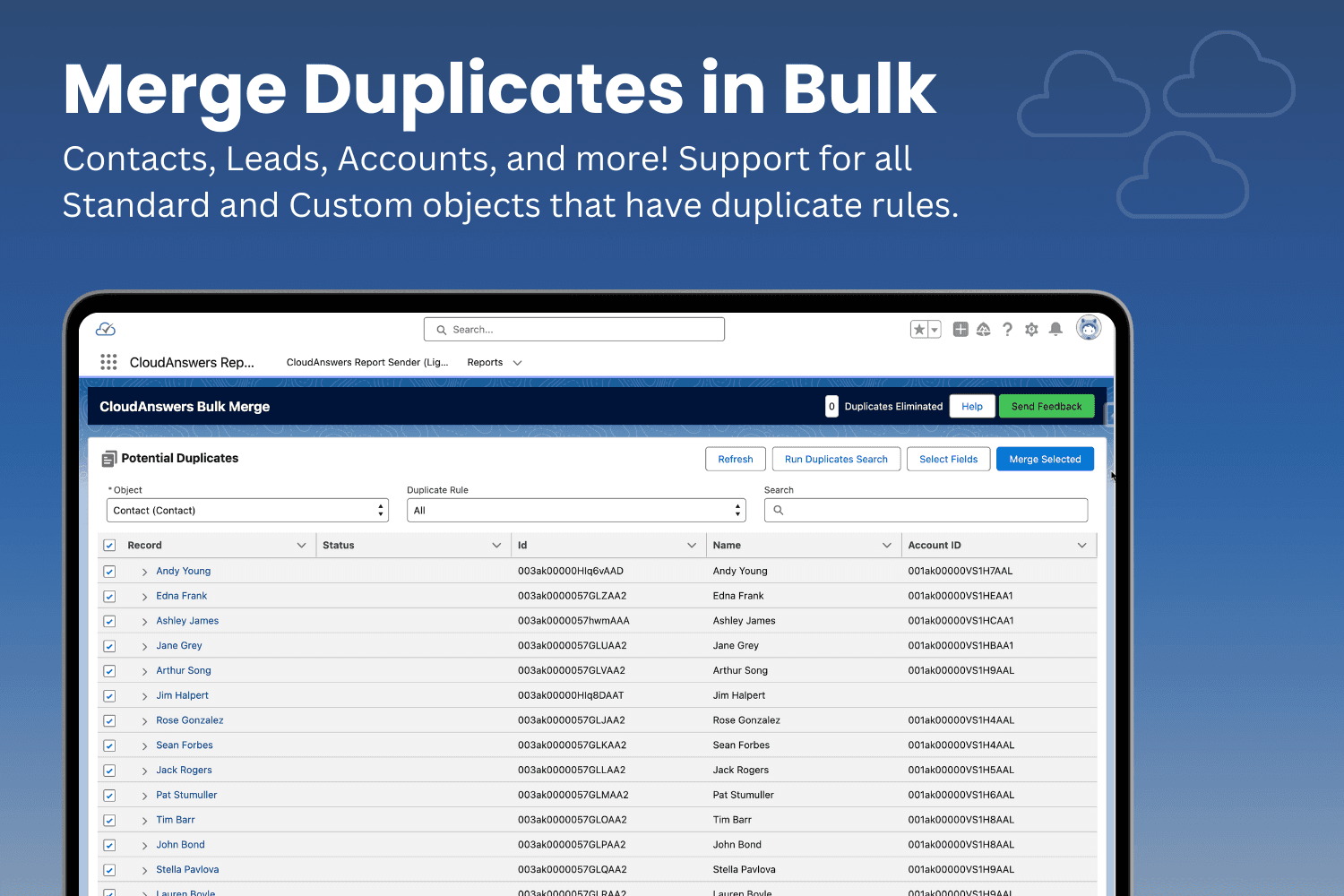
As consultants and app providers, we get to see a LOT of Salesforce orgs, and one thing that almost everyone has in common is bad data – it takes consistent, proactive work to ensure the data in Salesforce is clean and accurate. We love to leverage native tools, and we think Salesforce duplicate rules are powerful, so we always make sure our clients have them set up to prevent duplicates. But in our experience, duplicate management falls into two buckets: records that are definitely duplicates, like two contacts with the same email, and records that might be duplicated, but someone who knows the data might have to review. The second bucket is what we call potential duplicates, and it takes much more work to keep these out of your system.
Six years ago, we released our potential duplicates component to help show potential duplicates on custom objects and standard records where the standard Salesforce duplicate component didn’t exist. We released it for free because we felt it should be standard—it’s a great, simple tool for users to help determine which potential duplicates actually need to be merged. Since then, it has helped thousands of companies keep their Salesforce clean.
Now, we are introducing Potential Duplicates V2, which adds a powerful and commonly requested feature that allows you to scan your org for duplicates and merge them in bulk. Potential Duplicates V2 empowers our users to save countless hours and resources by enabling them to view and delete all duplicate records in their org. Let’s dive into this new powerful feature and see how it works.
Bulk Merge
Bulk Merge is designed to simplify the lives of our admins. It allows you to merge hundreds or thousands of duplicates, dramatically reducing time and complexity.
Here’s how it works: with Bulk Merge, just like the componnet, you have to make sure that your Salesforce duplicate rules are set up on the object you wish to merge. Bulk Merge uses the existing duplicate rulesin your org and supports the merging of any object Salesforce allows. Once those are set up, you can launch the app and start finding and eliminating duplicates. Keep reading for more on how it works.
Search for Duplicates
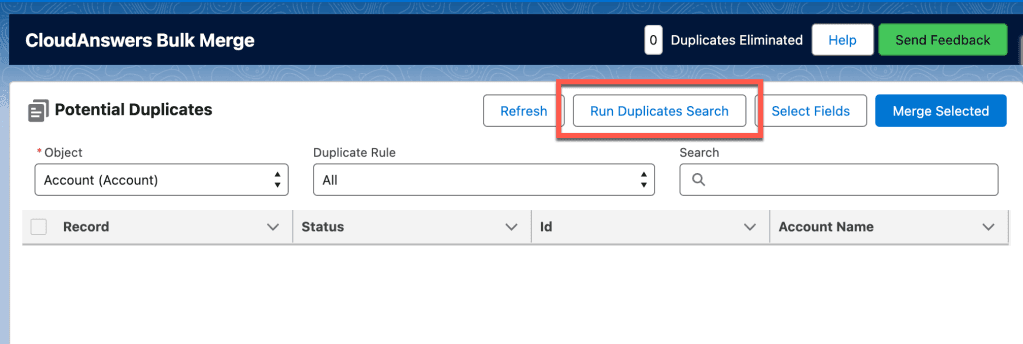
When you first go to the Bulk Merge tab, you may see duplicates there already. But if you don’t, or you’ve recently changed your duplicate or matching rules, you may want to start with a search. To do that, just make sure you have the object selected that you want to search and then click Run Duplicates Search. Then refill your coffee or work on something else because it’ll take a minute to scan through all the records. When you want, click Refresh to see all of the duplicates that it found. Then move on to either manually or automatically merging the duplicates that were found.
Manual Merge
Let’s take a look at a common occurrence: you and your team go to a trade show, and many of your colleagues start collecting contact information on potential prospects from the show. Sounds great, everyone is generating a ton of new connections, until they’re imported into Salesforce and you realize that a bunch of the “new connections” are people you’ve had in the system for years. After you have a conversation with the new guys about cross-referencing with the system before adding new people, you get started with the cleanup. This is a great use case for the manual merge feature in Bulk Merge, which lets you review every record before they’re merged, so you can make sure any new information is applied to the existing record while merging the excess data.
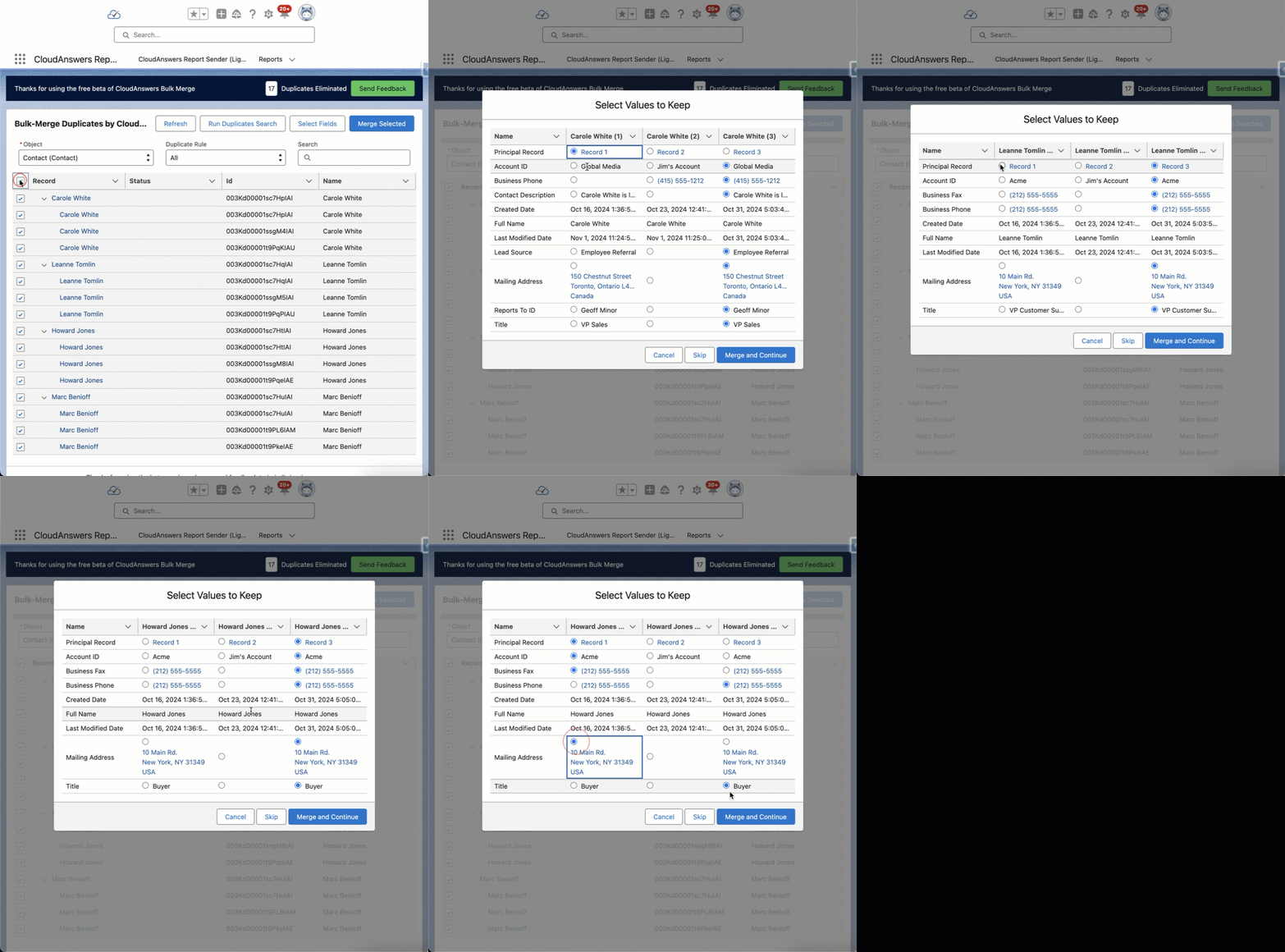
Manual merge empowers you to control the merge, keeping you in the driver’s seat for critical data merges.
Auto Merge
Let’s look at another situation that happens from time to time. Your company uses an external system to receive orders and sync them over into Salesforce via a batch job. Unfortunately for your organization, there was an issue with the API which caused mass sync jobs that no one noticed for a few days. Not to worry, this is a perfect use case for the Automerge feature.
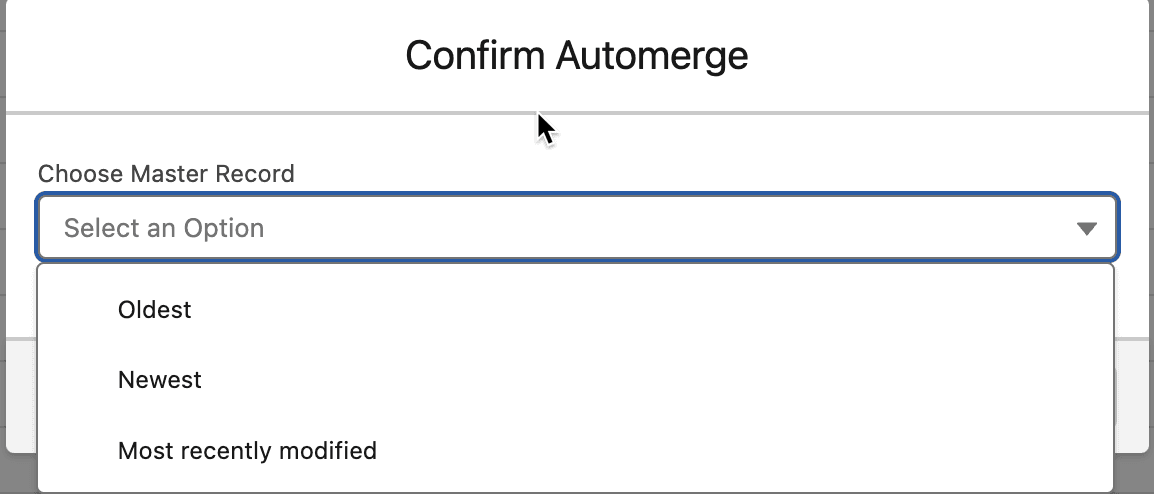
Automerge works by letting you choose which master record you want, Oldest, Newest, or the most recently modified. In this example, merging by the oldest record and letting the system do the rest would be the perfect solution for this problem, so let’s fix it!
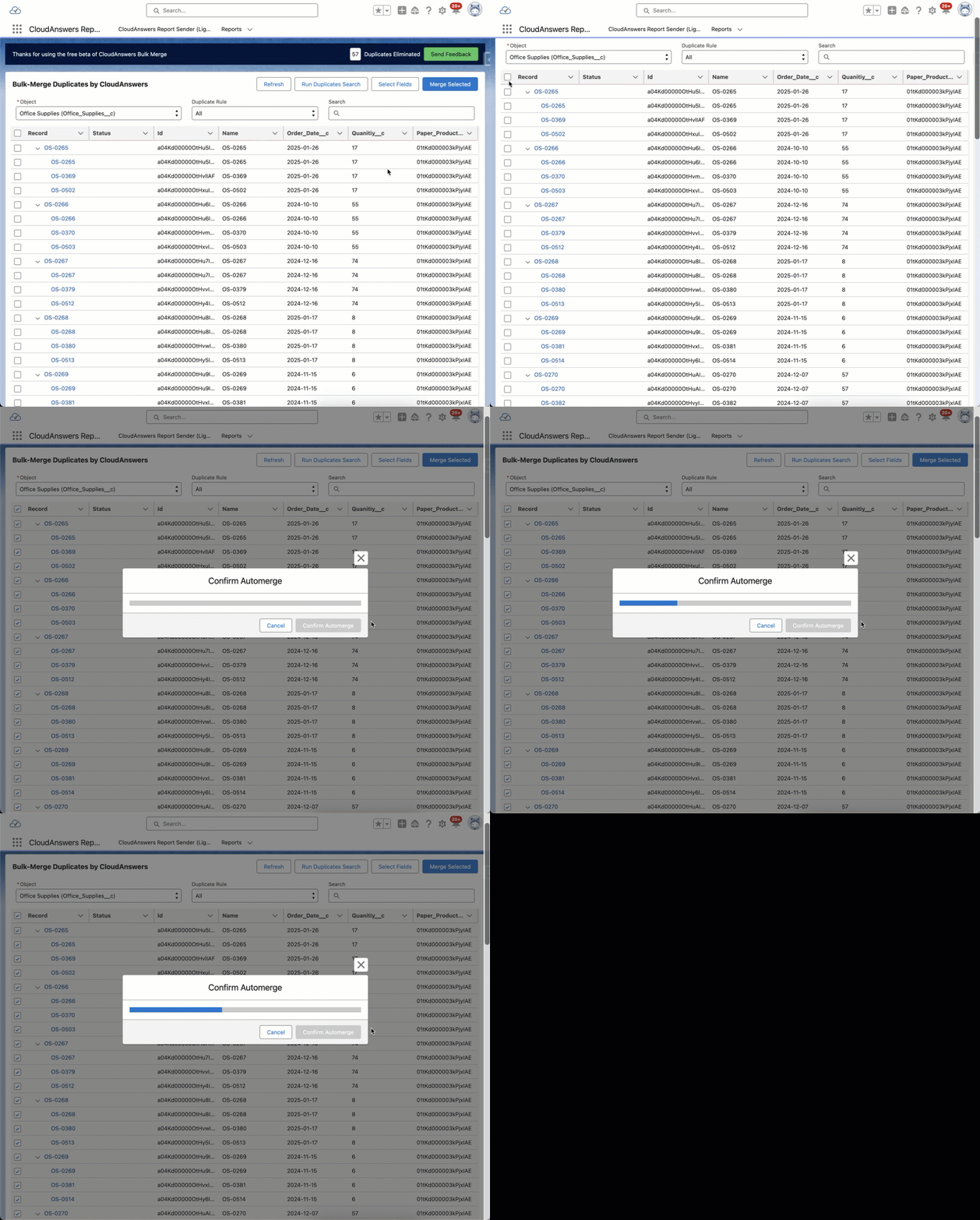
In this example we merged 30 duplicate records, but as you can see there is the option to “Load More” at the bottom of the page. There is nothing stopping you from loading hundreds of records in a batch, selecting and processing them. Taking a process that would normally several take hours and reducing it into a 15 minute task. Automerge is a great tool for tasks like this, or merges where you trust the system to make the dceisions for you.
Conclusion
Potential Duplicates v2 is the most capable data management application we’ve ever created. With the power of Bulk Merge and its options to manually or automatically merge records, it’s sure to assist your org with duplicates.
If you’re not already a Potential Duplicates user, this is the best time to start. We offer the application 100% free forever, so go ahead and start cleaning up your duplicates today!
Related Articles
Ready for Salesforce’s Phishing-Resistant MFA?
Starting July 1st, Salesforce will require phishing-resistant MFA for all admins and MFA for all users. Admins must enable security keys or built-in authenticators. Users without MFA may be locked out, requiring assistance. Phishing-resistant MFA prevents unauthorized access by using secure verification methods.
June 29, 2026
4 Min Read

8 Spring ’26 Features Salesforce Admins Can’t Afford to Miss
Salesforce’s Spring ’26 release delivers features that solve real admin pain points. We’ve identified the 8 updates that’ll have the biggest impact on your daily work, from long-awaited security improvements to Flow automation that doesn’t require a developer. Here’s what deserves your attention.
February 5, 2026
5 Min Read
AppExchange Review: Lazy Admin
Don’t you just wish you could ask an AI to build your Salesforce reports for you? I’ve found an app that does just that in our first installment of CloudAnswers AppExchange Reviews. Check out our review of Lazy Admin AI, a great app for an Admin in a rush.
July 25, 2024
5 Min Read

Partners

Company
Get in touch
Locations: New Hampshire, India, Maine, Colorado, Poland, Ukraine, Belarus
Email: help@cloudanswers.com
Phone: +1 508 500 8333