Identify, Report, and Export Duplicate Contacts in Salesforce
September 30, 2026 · 5 min read
Introduction
Duplicate Contacts are a common challenge in Salesforce. Over time, the same person may be added more than once, leading to inconsistent data, duplicate communication, wasted time, and inaccurate reporting.
Salesforce provides Matching Rules and Duplicate Rules to help identify records that may represent the same person. The free Potential Duplicates app makes it easier to find and review these records without manually searching through Contacts.
In this article, we’ll walk through a simple example of identifying duplicate Contacts using Potential Duplicates. We’ll also show how to make those identified duplicates available in a Salesforce report and export the results to XLSX for further review or analysis. This method works for any object where Salesforce lets you create duplicate rules: Accounts, Contacts, Leads, Individuals, or Custom Objects.
Potential Duplicates is free and rated 5 stars on the AppExchange, so you can follow along in your own org as you read.
Get Potential Duplicates FreeIdentifying Potential Duplicate Contacts
To demonstrate the duplicate detection process, we first created 10 pairs of duplicate Contacts. Each pair contains two Contacts with matching information, giving us a set of known duplicates to work with. Salesforce comes with some default duplicate rules, but if you need to adjust your duplicate rules, check out our article: Duplicate records in Salesforce.
Find Duplicate Contacts
If you’ve recently changed your duplicate or matching rules, run a duplicates search first. Go to the Bulk Merge tab in the Potential Duplicates app and click Run Duplicates Search. Once the job completes, you’ll get an email. Potential Duplicates groups the matching records into Duplicate Record Sets, making it easier to review Contacts that may be duplicates.
From the Bulk Merge page, users can open a duplicate set and review the Contacts to determine whether they are actually duplicates and whether further action, such as merging the records, is required. But sometimes you want to review duplicates with others before merging them. For that, you might want to run a report you can export (or send on a schedule with Report Sender).
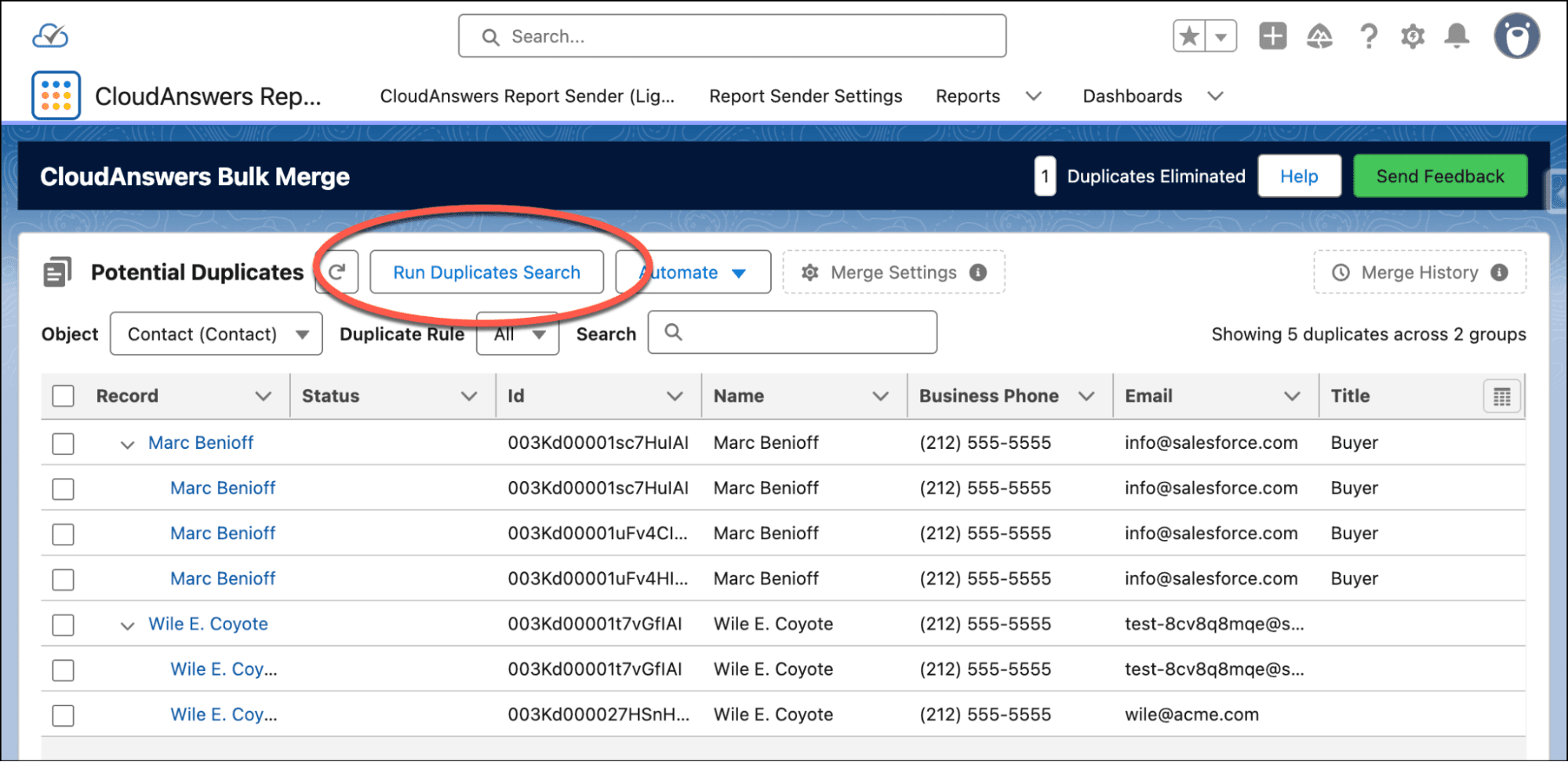
Run a duplicates search from the Bulk Merge tab.
Reporting on Identified Duplicates
While Potential Duplicates makes it easy to identify and review potential duplicates, you may also want to create a report containing those records. This can be useful when you need to analyze the duplicates, share the results with other users, or export the data for further review.
Salesforce stores the relationship between a duplicate Contact and its duplicate set through Duplicate Record Set Items. We can use this relationship to create a Custom Report Type and make the identified duplicates available in Salesforce Reports.
Create a Custom Report Type
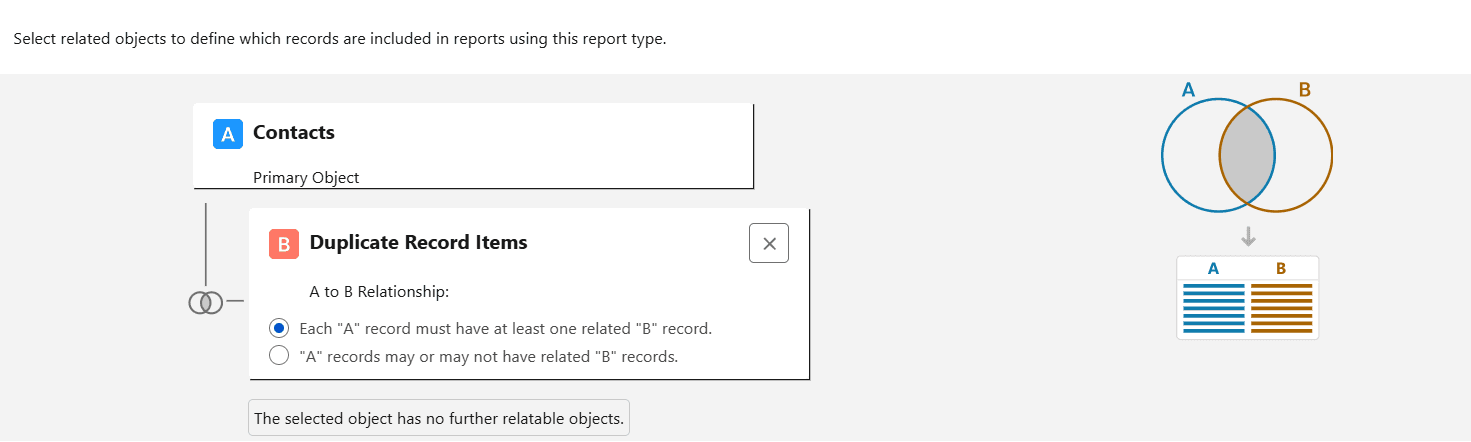
Create a new Custom Report Type from Salesforce Setup with the following configuration:
| Setting | Value |
|---|---|
| Primary Object | Contacts |
| Related Object | Duplicate Record Set Items |
| Relationship | Each Contact must have at least one related Duplicate Record Set Item |
Selecting “Each A record must have at least one related B record” ensures that the report only includes Contacts associated with a Duplicate Record Set Item.
Create the Duplicate Contact Report
After you create the Custom Report Type, create a new report using it.
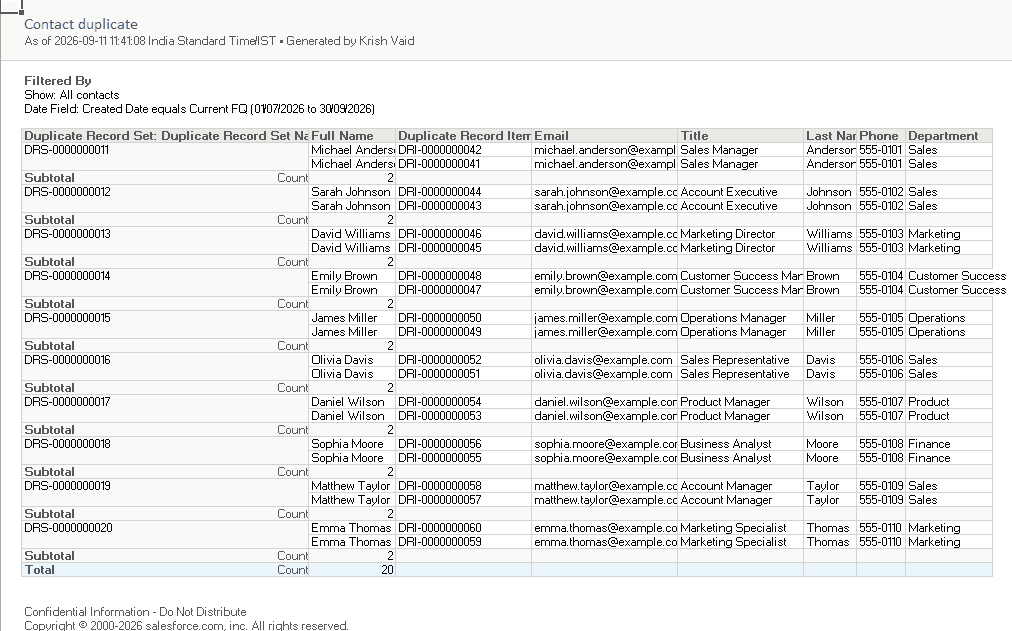
Add the Contact and Duplicate Record Set fields you want to display, then group the records by Duplicate Record Set Name.
Grouping by Duplicate Record Set Name keeps Contacts belonging to the same duplicate group together, making the results easier to review.
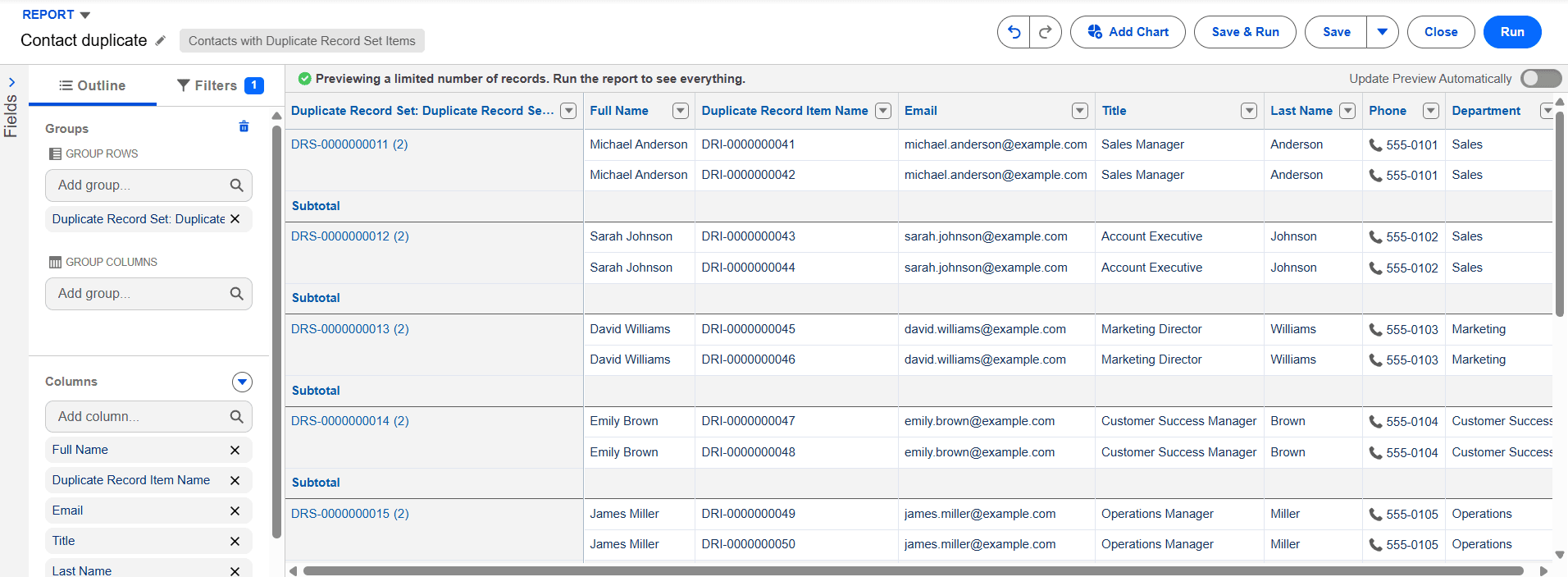
Tip: If you include the Duplicate Record Set ID and the Duplicate Record Item ID, you can use those in any ETL tool to delete record sets or items that are not a duplicate. Note that they may get recreated after future duplicate scans if you don’t update the matching rule or the data.
Export the Results
After reviewing the report, use Salesforce's standard Export functionality to download the results.
Select Excel (.xlsx) as the export format and click Export. You can use the resulting file for further analysis, share it with other users, or keep it for reference. Once you’ve decided how you want to merge the records, return to the CloudAnswers Bulk Merge tab to start the process.
Review Results on a Schedule
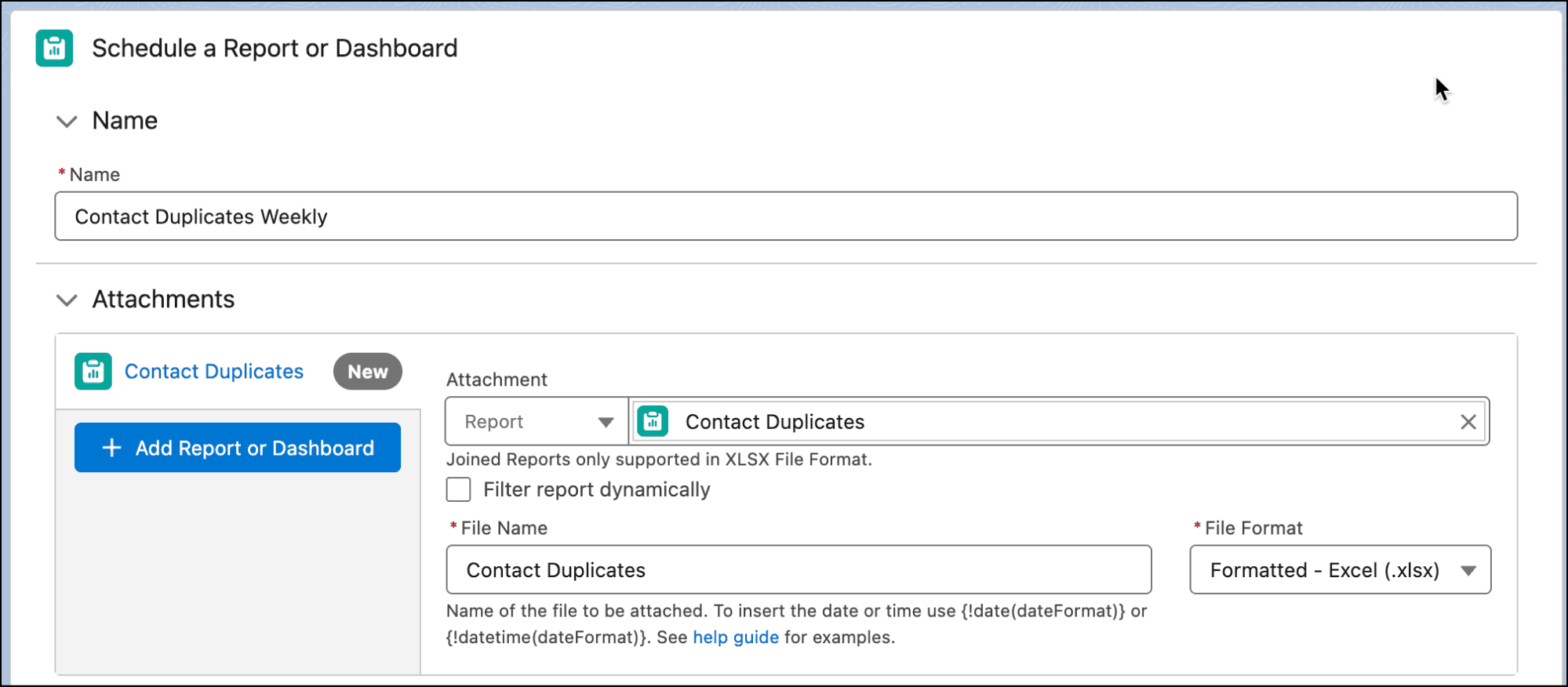
If you want to send this to yourself or other admins on a regular basis, you can use Salesforce report subscriptions or the CloudAnswers Report Sender app. That way, the team knows when duplicates are increasing or decreasing and can discuss when to do a bulk cleanup.
In Report Sender, you just set up a report schedule with your new report, choose the schedule you want, and add your admin team. It's also helpful to add a link to the Bulk Merge tab so people can jump in and start merging.
Conclusion
Potential Duplicates provides a convenient way to identify and review duplicate Contacts (or any object) in Salesforce. Once you identify duplicate records, you can use Salesforce Reports to review or export them.
By creating a Custom Report Type based on Contacts and Duplicate Record Set Items, you can report specifically on Contacts that have been identified as potential duplicates. Grouping the results by Duplicate Record Set Name makes it easier to see which Contacts belong to the same duplicate group, while exporting the report to XLSX provides a convenient format for further analysis or sharing.
Together, Potential Duplicates and Salesforce Reports provide a practical workflow for identifying, reviewing, and reporting on duplicate Contact records.
Ready to clean up your own org? Potential Duplicates is free to install and takes just a few minutes to set up.
Install Potential Duplicates FreeQuestions about Potential Duplicates or your duplicate cleanup process? Let us know.
Frequently Asked Questions
Yes. Potential Duplicates is a free, 5-star-rated app on the Salesforce AppExchange.
Yes. Once you build a report on Contacts and Duplicate Record Set Items, use Salesforce's standard Export function and choose Excel (.xlsx) as the format.
Yes. It works for any object where Salesforce lets you create duplicate rules, including Accounts, Leads, Individuals, or Custom Objects.
Yes. Use Salesforce report subscriptions or the CloudAnswers Report Sender app to send the report to your admin team automatically.
Related Articles
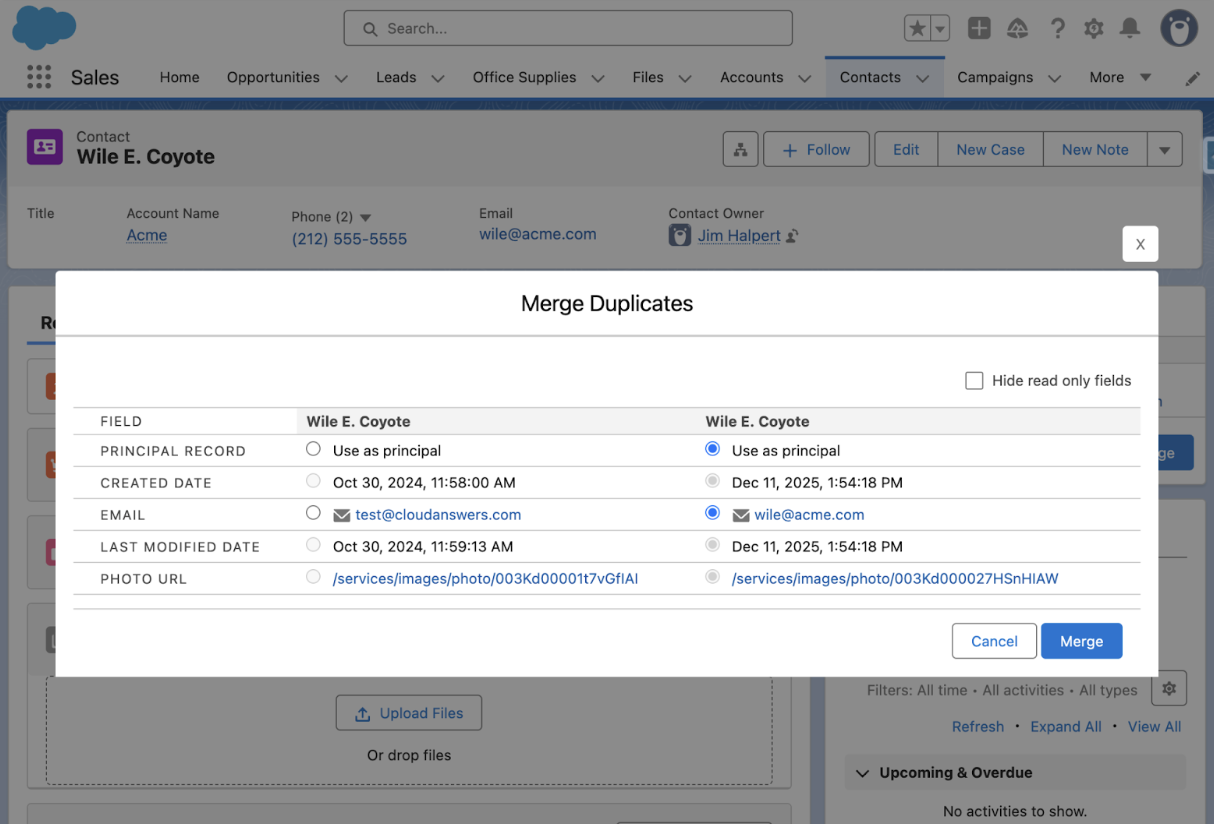
Say Goodbye to Salesforce Duplicates with CloudAnswers’ Potential Duplicates & Bulk Merge
Duplicate data can feel like misaligned puzzle pieces – information that should…
December 16, 2025
17 Min Read

Partners

Company
Get in touch
Locations: New Hampshire, India, Maine, Colorado, Poland, Ukraine, Belarus
Email: help@cloudanswers.com
Phone: +1 508 500 8333