Quotes and Opportunity Line Items - Add a Trigger to Sync Custom Fields
May 24, 2018 · 4 min read

Background:
Quotes in Salesforce represent a proposal of prices for your company’s products and services to a particular prospect. If the Quote object is enabled on your page layout, a Sales Rep can generate a Quote from an Opportunity and its Line Items (OLIs). Each Opportunity can have multiple associated Quotes, and any one of them can be synced with the Opportunity. When a Quote and an Opportunity are synced together, any change to product line items on the Quote syncs with Products on the Opportunity, and vice versa. All this is standard Salesforce functionality.
Problem:
However, this sync only happens for standard fields on the line items, not for custom fields. Since product pricing tends to be complex and requires flexibility for most businesses, this means that many OLIs have custom calculation fields that are central to a business's pricing offers. Some examples where custom fields might be lurking are annualised pricing calculations for products sold at a monthly unit price, custom descriptions or names to display to customers on the Quote document, or custom date ranges for ongoing services.
Let's take a look at an example of this issue in action.
Here's an Opportunity record with no products or quotes initially:
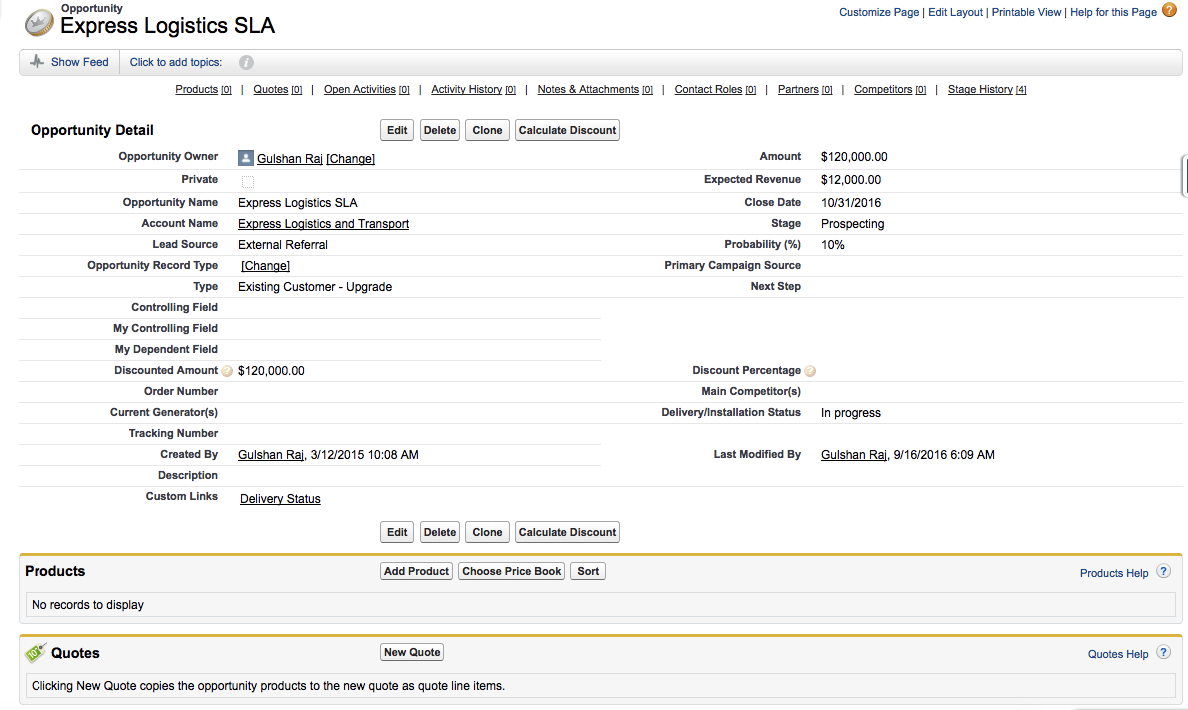
Let's add a Quote to this Opportunity record by clicking "New Quote":
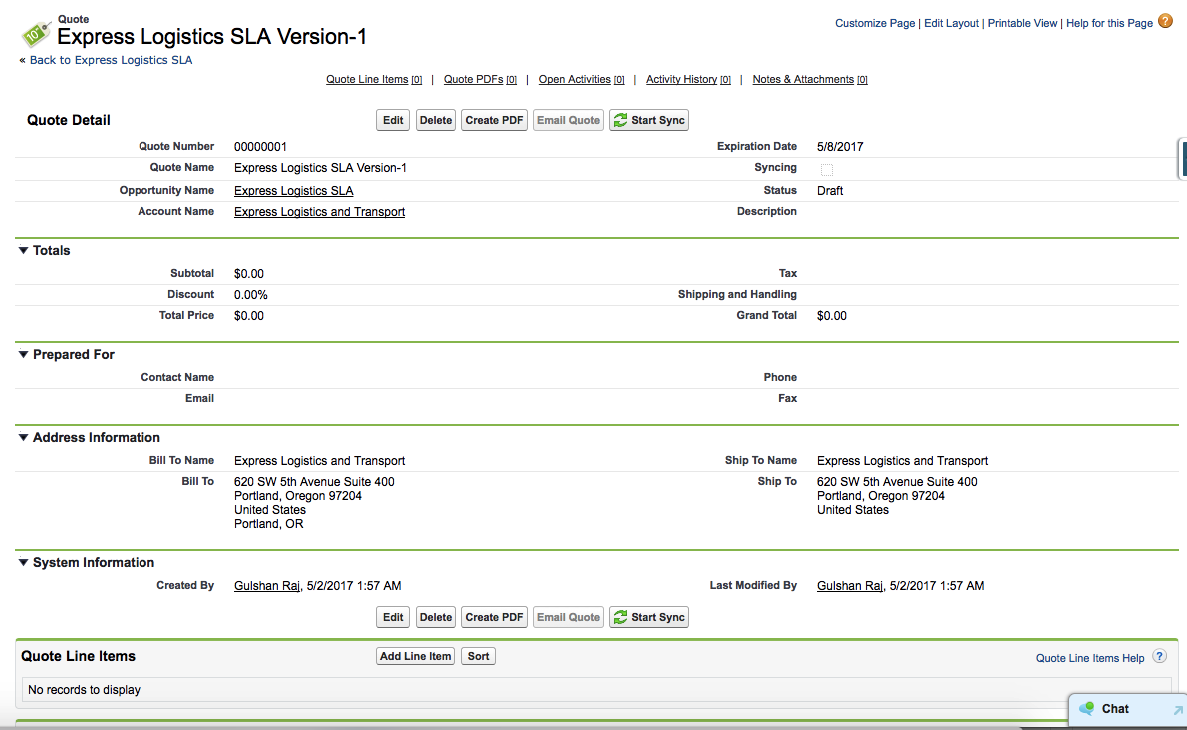
And add some products to the Quote (i.e Quote Line Items):
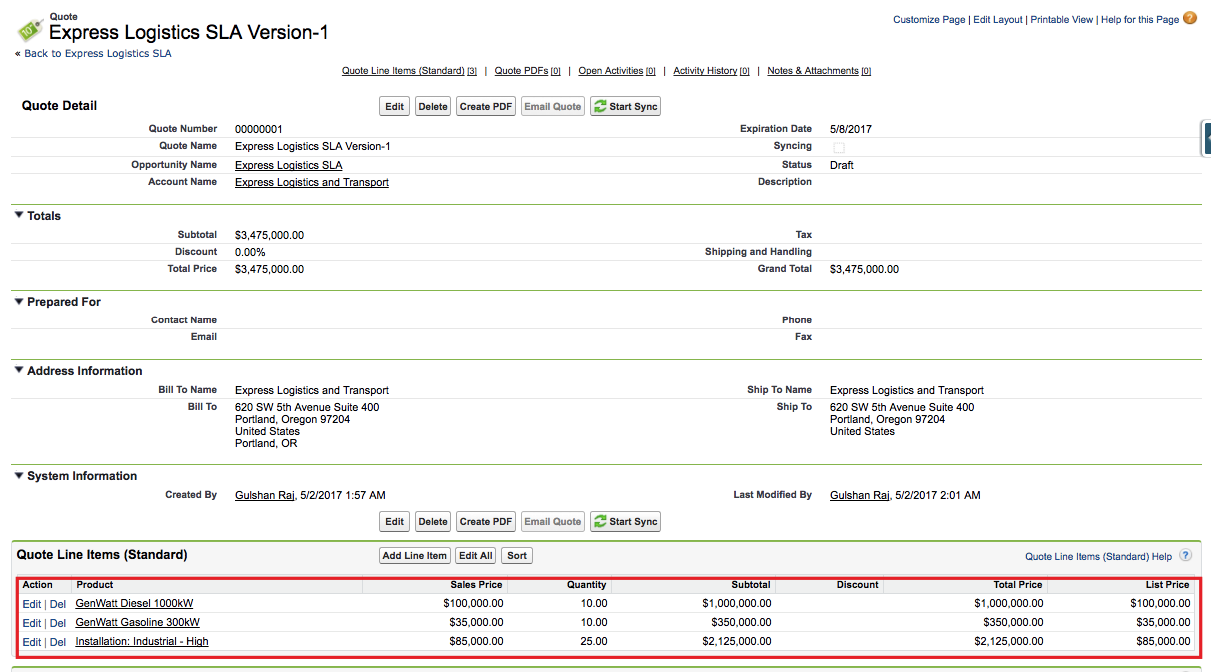
Now when we click the "Start Sync" button on the Quote, it populates all Quote line items to the associated Opportunity (i.e it creates matching Opportunity Line Items).
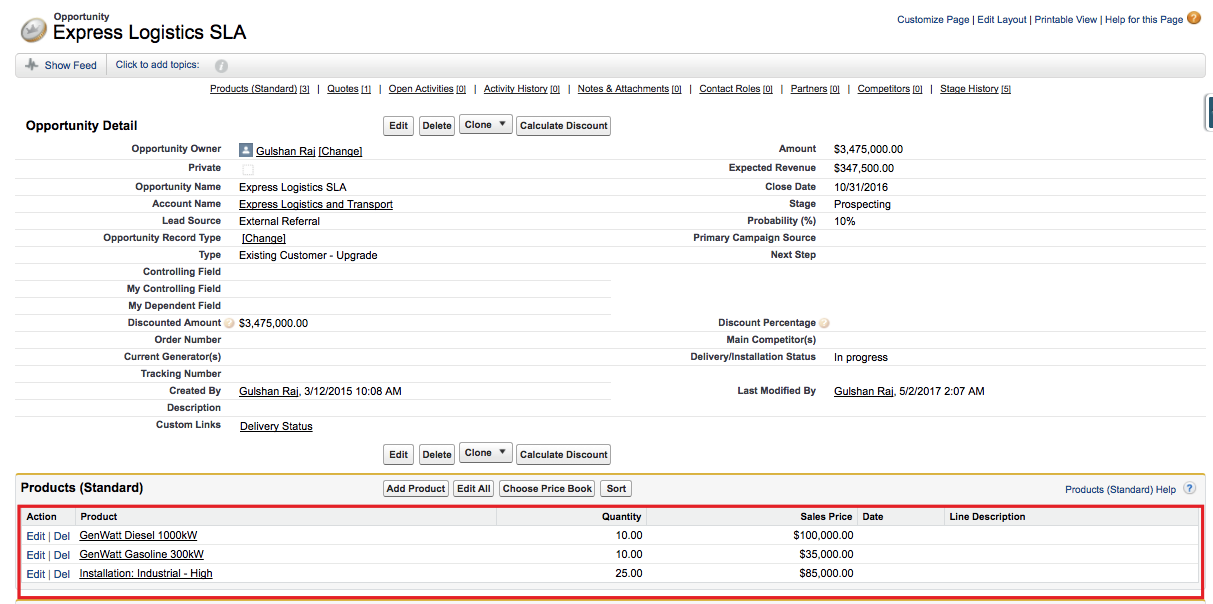
So far so good.
If you change any value on a Quote line item, it will immediately reflect that value on the respective OLI. But what about that cool custom field I made to tag whether this product is a renewal of a previous contract?? There's no point-and-click approach to map Opportunity Line Item fields with Quote line item fields.
Here's a description of how we've solved this quandary with some custom fields and a little Apex.
Step 1) Create a custom formula field on Quote line item (I call it "Opportunity Line Item ID").
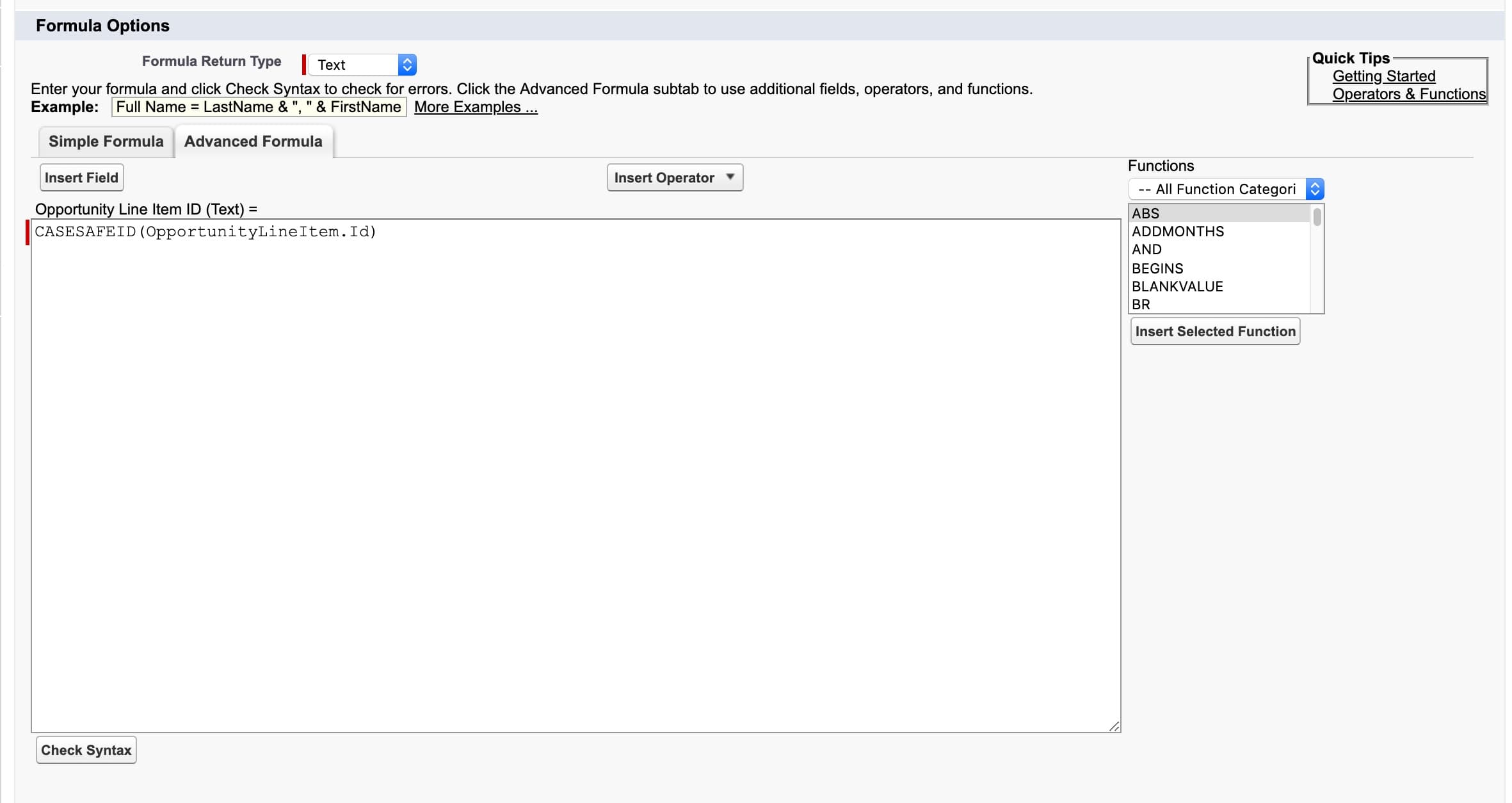
This will return the synced Opportunity Line Item ID on the Quote Line Item and let our quote find and link the objects.
Note: This field is hidden in the formula picker interface, so you have to enter it just as shown. The QLI to OLI relationship can't be referenced in a formula, and that's why you can't just add custom formula reference fields onto the Quote Line Item to look up to their OLI counterparts; you have to use Apex to keep the fields in sync.
Step 2) Create a handler class for QuoteLineItem trigger.
public class QuoteLineItemTriggerHandler { public static void syncQuotes(List newLineItems) { // get quote ids we need to query for Set quoteIds = new Set(); for (QuoteLineItem qli : newLineItems) { if (qli.QuoteId != null) { quoteIds.add(qli.QuoteId); } } // Linking quote line item with Opportunity Line Items Map<ID,ID> mapQuoteLineItemSortOrder= returnDefaultLinking(quoteIds);//Fetch opportunity line item for sync Map<ID,OpportunityLineItem> mapOppLineItems=new Map<ID,OpportunityLineItem>(); for(OpportunityLineItem oli:) { mapOppLineItems.put(oli.id,oli); }
List lstOppotunityToUpdate = new List(); for (QuoteLineItem qli : newLineItems) { OpportunityLineItem oli = mapOppLineItems.get(mapQuoteLineItemSortOrder.get(qli.Id)); if (oli != null ) { oli.Renewal__c=qli.Renewal__c; //update more fields....
lstOppotunityToUpdate.add(oli); } } update lstOppotunityToUpdate; } private static Map<ID,ID> returnDefaultLinking(Set poIds) { Map<ID,ID> mapSortOrder= new Map<ID,ID>(); String query='select id, name,(select id, Opportunity_Line_Item_ID__c from QuoteLineItems ) from Quote where id in :poIds'; List lstQuotesWithLineItems=Database.query(query); for(Quote q: lstQuotesWithLineItems) { if(q.QuoteLineItems !=null) { for(QuoteLineitem qli : q.QuoteLineItems) { if(qli.Opportunity_Line_Item_ID__c!=null) { //map quote line item id with respective opportunity line item id mapSortOrder.put(qli.Id,ID.valueOF(qli.Opportunity_Line_Item_ID__c)); } } } } return mapSortOrder; } }
Step 3) Create the QuoteLineItem Trigger
trigger QuoteLineItemTrigger on QuoteLineItem (after update) { QuoteLineItemTriggerHandler.syncQuotes(Trigger.new); }
Step 4) Create a handler class for OpportunityLineItem Trigger
public class OpportunityLineItemTriggerHandler{ public static Boolean isTriggerFire = true; public static void sync(Set oliIds ){ List lstQLIUpdate = new List(); for(QuoteLineItem qli: newLineItems){ lstQLIUpdate.add(new OpportunityLineItem(Id=qli.Opportunity_Line_Item_ID__c, Renewal__c=qli.Renewal__c)); } if(!lstQLIUpdate.isEmpty()){ isTriggerFire = false; update lstQLIUpdate; isTriggerFire = true; } } }
Step 5) Create the OpportunityLineItem Trigger
trigger OpportunityLineItemTrigger on OpportunityLineItem (after insert) { if(Trigger.isInsert && Trigger.isAfter && OpportunityLineItemTriggerHandler.isTriggerFire){ Set qliIds = Trigger.newMap.keyset(); OpportunityLineItemTriggerHandler.sync(qliIds); } }
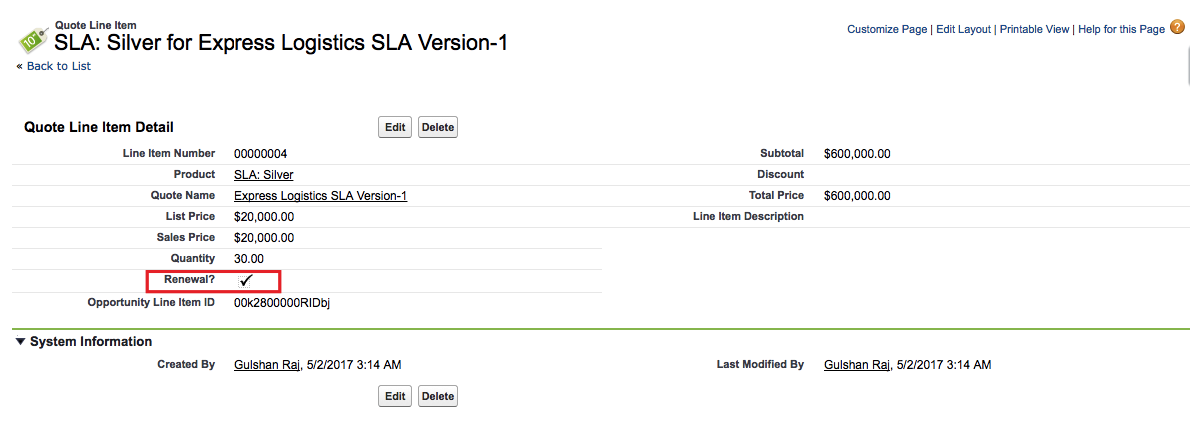
Now, return to your Quote Line Item and make a change, you will see the custom field data is also getting synced to the Opportunity Line Item now:

Happy Coding!
Related Articles

Why You Should Sync Salesforce to an External Database
Quick Summary Why Your Salesforce Data Needs to Break Free Salesforce has…
January 8, 2026
19 Min Read
Fast Inline Editing Lists with LWC and Conga Grid
We had a client request to let users inline edit multiple records…
December 29, 2025
5 Min Read

Tips for Becoming a Salesforce Developer
Interested in becoming a Salesforce developer? In this blog post Jagmohan has put together his favorite tips and resources to get started in the world of Salesforce development.
April 4, 2024
6 Min Read

Partners

Company
Get in touch
Locations: New Hampshire, India, Maine, Colorado, Poland, Ukraine, Belarus
Email: help@cloudanswers.com
Phone: +1 508 500 8333