How to Build a Salesforce Backup Strategy: What to Back Up, How Often, and Where to Store It
April 30, 2026 · 16 min read
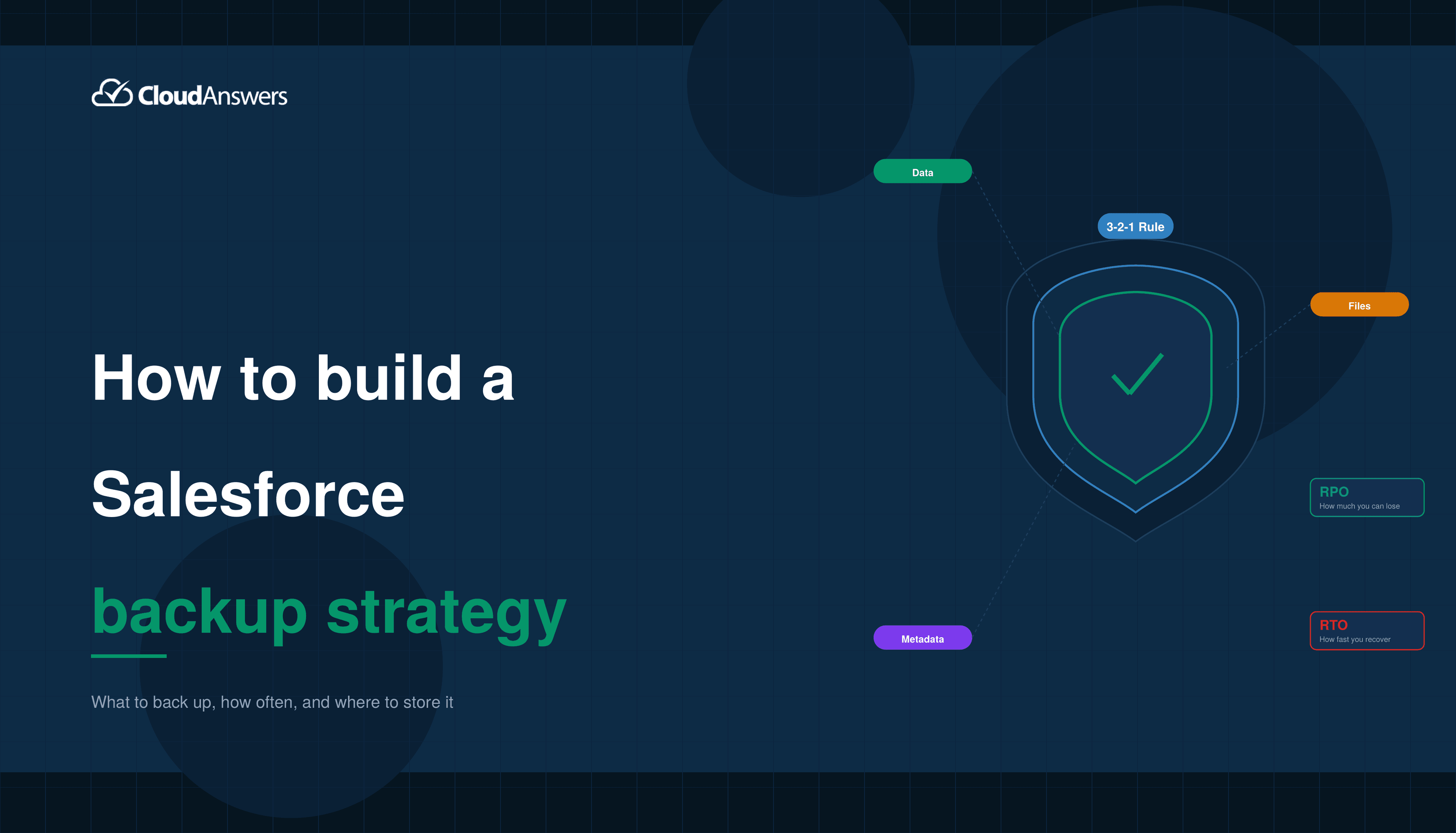
If you’ve ever read a blog post about Salesforce backup that left you thinking “okay, but what do I actually do?,” here is your answer. We’re going to skip past the usual “you really should back up your data” pitch (you’re reading this, so you already know) and get straight into the practical decisions: what gets backed up, how frequently, where it lives, and how you’ll actually restore it when the time comes.
Building a backup strategy isn’t about buying a tool and turning it on. It’s about answering a set of specific questions that determine what “adequate protection” means for your specific org. Let’s work through them.
Start With Two Numbers: RPO and RTO
Every backup strategy starts with two acronyms that sound more intimidating than they are.
RPO (Recovery Point Objective) is how much data you can afford to lose, measured in time. If your RPO is 24 hours, that means in a worst-case scenario, you’re okay with losing up to a day’s worth of data. If your RPO is 1 hour, you need backups to run at least once an hour.
RTO (Recovery Time Objective) is how quickly you need to be back up and running after a data loss event. An RTO of 4 hours means the clock starts when the disaster happens, and you have 4 hours to detect it, pull the backup, restore the data, verify it, and get users working again.
These two numbers drive every other decision. A 4-hour RPO and a 1-hour RTO mean you need frequent backups and a fast restore process. A 24-hour RPO with a 24-hour RTO means a daily backup with manual restore is probably fine. The cost of your backup strategy scales directly with how aggressive these numbers are, tighter RPO and RTO mean more infrastructure, more tooling, and more operational overhead.
How do you pick the right numbers? Think about what happens when things go wrong. If your sales team loses a full day of Opportunity updates, how bad is that? If your service team loses 8 hours of Case history, can they piece it back together? If you lose a week of metadata changes from your last release, how long does it take to rebuild? Have this conversation with the business, not just IT. The answer usually lands somewhere around:
- Low-risk orgs (small teams, infrequent changes, non-critical data): RPO 24 hours, RTO 24-48 hours. A daily backup with a manual restore process is sufficient.
- Standard production orgs (active sales/service teams, moderate change velocity): RPO 12 hours, RTO 4-8 hours. Daily backups with some critical objects backed up more frequently.
- High-risk orgs (heavy transactional use, financial data, compliance requirements): RPO 1-4 hours, RTO 1-2 hours. Frequent incremental backups, automated restore tooling, and tested recovery procedures.
Write these numbers down before you start evaluating tools. Without them, you can’t tell whether any given backup solution actually meets your needs.
What to Actually Back Up
This is the question most admins don’t think hard enough about until they’re in the middle of a restore. “All of it” sounds like the right answer, but it’s more expensive and more operationally complex than most orgs need. Here’s a better way to think about it.
Data
Start with your standard objects and custom objects. These are the records your business runs on. The core list usually includes:
- Accounts, Contacts, Leads: customer and prospect data
- Opportunities, OpportunityLineItems, Products, Pricebooks: sales data
- Cases, Case Comments, Solutions: service data
- Tasks and Events: activity history (often the highest-volume object)
- Campaign, CampaignMember: marketing data
- Custom objects: whatever your org uses to run its business
Some objects are harder to back up than others. Activity objects (Tasks and Events) grow fast and accumulate millions of records in mature orgs. History objects (AccountHistory, OpportunityHistory, etc.) contain change tracking data that’s easy to overlook but hard to reconstruct.Large data volumes make these objects expensive to back up frequently, which is why many orgs back up high-volume objects less often than core business objects.
Files and Attachments
Here’s a gotcha that catches many teams off guard: files and attachments in Salesforce are a completely separate storage category from data, and they often represent the largest volume of content in an org. Contracts, signed proposals, customer documents, scanned forms, email attachments, all of this lives in ContentDocument, ContentVersion, and (in older orgs) Attachment objects.
A lot of backup tools treat file backup as an optional add-on, or they back up the metadata about the file but not the file itself. That’s not a backup. If a user accidentally deletes a Contract, you need the actual PDF back, not just a record saying it existed. Make sure your backup strategy explicitly includes file content, not just file records.
Metadata
This is the part most orgs get wrong. Metadata is the structure of your Salesforce org, your custom fields, page layouts, validation rules, Flows, triggers, profiles, permission sets, page assignments, record types, and so on. It’s everything that makes your Salesforce org your Salesforce org.
Why does this matter? Because if you need to restore data, you also need the matching metadata. A backup of the Opportunity records from last month is useless if a custom field has been deleted since then, there’s nowhere to put the restored values. Worse, a bad deployment can accidentally delete a custom field and take all its data with it, and without a metadata backup you’re rebuilding it from scratch.
Metadata backup is also how you protect against configuration changes you didn’t mean to make. If someone modifies a Flow and breaks a business process, you need a way to see what changed and roll it back. The native Data Export Service doesn’t include metadata at all, you need either a third-party tool or a manual process (like regularly retrieving metadata through the Metadata API or a DevOps tool) to capture it.
What You Probably Don’t Need to Back Up
Not everything needs the same level of protection. System-generated objects like LoginHistory, EventLogFile, and Apex job records are typically retained by Salesforce and don’t need to be in your backup. Soft-deleted records in the Recycle Bin will be purged in 15 days anyway (or 30 days if you enable Extended Recycle Bin Retention, which is a Classic-only setting, Lightning is stuck at 15 days), so they’re not a meaningful backup target.
And worth noting: the Recycle Bin also has a capacity cap of 25 times your org’s data storage allocation, which means records can be purged before the 15-day mark if the bin fills up. That’s another reason the Recycle Bin isn’t a reliable safety net. Test data in sandboxes can also be re-created rather than restored.
The right approach is tiered: put mission-critical objects in the highest-frequency backup tier, supporting objects in a less frequent tier, and archival or low-change data in the least frequent tier.
How Often to Back Up
This question is where RPO becomes concrete. If your target RPO is 24 hours, you need at least one backup per day. If your target is 4 hours, you need backups every 4 hours or more frequently.
Here’s what makes this tricky in Salesforce: native backup tools have hard limits on frequency. The built-inData Export Service runs weekly or monthly at most, depending on your edition. That’s fine if your RPO is a week, but most businesses can’t tolerate that level of potential loss.
Third-party tools typically offer:
- Daily backups: the standard baseline for most orgs. Meets a 24-hour RPO and is the minimum I’d recommend for any production org.
- Hourly or high-frequency backups: for critical objects or high-velocity environments. These usually cost more because they consume more API calls and storage.
- Continuous/near-real-time: streaming changes as they happen. Expensive and operationally complex, usually reserved for enterprise orgs with strict compliance requirements.
- On-demand backups: triggered manually before risky operations like a major release, a bulk data migration, or a duplicate merge. Always take one of these before doing something that could go wrong.
A common pattern for standard production orgs is: daily full backup of all objects, plus hourly incremental backups of the most critical objects (typically Accounts, Contacts, Opportunities, and whatever drives your core revenue flow). This gives you a 24-hour safety net for everything and a 1-hour safety net for what matters most.
One thing to watch out for: backup operations consume API calls, and Salesforce orgs have daily API limits that your backup schedule has to respect. Aggressive high-frequency backups on large orgs can chew through API capacity that your integrations and automations also need. Factor this in when designing your schedule, and monitor API usage to make sure backups aren’t starving other processes.
Where to Store Your Backups
This is the question that often gets the least attention and causes the most problems later. A backup stored in the same place as your production data isn’t really a backup, it’s a second copy that can fail for the same reasons.
The gold standard is the 3-2-1 rule, a backup best practice that’s been around for decades: maintain at least 3 copies of your data, on 2 different types of storage, with 1 copy off-site. This is endorsed by NIST and CISA and it’s the baseline for any serious backup strategy.
In a Salesforce context, the 3-2-1 rule translates to something like this:
- Copy 1: Your production Salesforce org (the original).
- Copy 2: A backup stored by your backup provider (this is the “different storage” part, typically cloud object storage like AWS S3 or Azure Blob).
- Copy 3: An additional off-site copy, either in a different cloud region, a different cloud provider, or exported locally.
The off-site requirement exists because a regional outage at your cloud provider, a security incident with your backup vendor, or a widespread ransomware event can all take out both your production and backup copies at once if they’re in the same place. Having a geographically or logically separate copy protects against these rare but catastrophic scenarios.
There’s also an evolved version called 3-2-1-1-0: three copies, two media types, one off-site, one immutable (meaning it can’t be modified or deleted, even by an admin, this protects against ransomware and insider threats), and zero errors in backup verification (meaning you actually test your backups regularly).
For most Salesforce orgs, “good enough” looks like this:
- Daily automated backups stored with a third-party provider on independent cloud infrastructure
- A weekly or monthly export downloaded and stored somewhere separate from your primary backup (a company file share, an archive bucket in your own AWS account, whatever)
- Immutability enabled on your backup storage where possible
- Quarterly test restores to verify the backups actually work
Should You Store Backups Inside Salesforce?
Short answer: no. Some backup tools offer to store your backups in a custom object inside the same Salesforce org. This seems convenient but it defeats the purpose of a backup. If the org is compromised, deleted, or suspended, your backup goes with it. If an admin’s credentials are compromised, they have access to both production and backup. And the storage cost inside Salesforce is much higher than cloud object storage.
Backup data should always live outside your production Salesforce org, in infrastructure with independent access controls.
Retention: How Long to Keep Backups
Not every backup needs to live forever. A reasonable retention policy balances recovery flexibility against storage cost and compliance requirements.
A typical tiered retention schedule looks like:
- Recent backups (0-30 days): keep everything, every backup, for maximum granularity. This is where most restore operations happen.
- Monthly snapshots (1-12 months): keep one backup per month for the past year. This protects against issues that go undetected for weeks.
- Annual snapshots (1-7+ years): keep one backup per year for long-term compliance, audits, and edge-case recovery scenarios.
Industry and regulatory requirements may dictate specific retention periods. GDPR, HIPAA, SOX, and various financial regulations have requirements for how long certain kinds of data must be kept and (in some cases) how quickly personal data must be deleted upon request. Make sure your retention policy accommodates both “keep this for 7 years” and “delete this within 30 days of a deletion request,” these can be in tension, and your backup tooling needs to handle both.
Testing: The Step Everyone Skips
A backup that has never been tested is a hope, not a strategy.
Most organizations religiously back up their data and then never once test a restore until disaster strikes. That’s the moment you discover that the backup was corrupted, or the restore tool doesn’t work the way you expected, or the restore takes 18 hours when you thought it would take 2, or the backup is missing an object you didn’t realize was excluded from the job.
You should test your backups at least quarterly. A proper test isn’t just “does the backup file exist,” it’s an end-to-end recovery exercise:
- Pick a small subset of records that you can safely experiment with.
- Restore them from the backup to a sandbox (or, if you’re brave, to a test area of production).
- Verify the restored data is correct, all fields populated, relationships intact, files attached.
- Time the whole process from start to finish.
- Document any issues and fix them.
At least once a year, do a larger-scale test: restore a full object’s worth of data. Every few years, simulate a full disaster recovery scenario and measure how long it actually takes to get back to normal operations. Compare that measured RTO against your target RTO. If the gap is large, you have work to do.
Testing also reveals gaps in documentation. The person who set up your backup solution three years ago might not be the person who needs to run a restore at 2 AM during a crisis. Written procedures, clear credentials, and rehearsed processes make the difference between “we got it back in an hour” and “we spent the whole morning trying to remember how this tool works.”
A Note on the Shared Responsibility Model
One thing worth explicitly calling out: Salesforce does not back up your data for you in a way that you can restore. This is one of the most common misconceptions in the Salesforce ecosystem, and it catches new admins off guard every single time.
Salesforce maintains infrastructure backups for their own disaster recovery purposes, if their data center burns down, they can bring the platform back. But those backups aren’t available to you as a customer. The old Data Recovery Service (which was $10,000 and took 6-8 weeks) was retired in 2020, brought back briefly in 2021, and then retired again. As of today, native Salesforce Backup (formerly called Backup and Restore) is a paid add-on product, and AppExchange partners are the primary source of backup tooling. This is all part ofwhy your Salesforce org needs a backup strategy, it’s your responsibility, not Salesforce’s.
This is called the shared responsibility model: Salesforce is responsible for keeping the platform running, and you are responsible for protecting the data you put into it. The line is clearly drawn, and there’s no version of events where Salesforce magically restores your data because you forgot to back it up.
Putting It All Together: A Sample Strategy
Here’s what a reasonable backup strategy looks like for a typical mid-sized Salesforce org with around 100 users running sales and service:
RPO target: 24 hours for standard objects, 4 hours for critical objects (Accounts, Opportunities, Cases). RTO target: 8 hours.
What’s backed up:
- All standard objects with production data
- All custom objects
- Files and attachments (ContentVersion content)
- Metadata (weekly minimum, ideally on every production deployment)
Frequency:
- Daily automated full backup of all objects
- Hourly incremental backups of Accounts, Contacts, Opportunities, Cases
- On-demand backup before anymajor bulk operation like a duplicate merge, migration, or deployment
Where it lives:
- Primary backup with a third-party provider, stored on AWS or Azure infrastructure
- Monthly export archived to a separate location (company S3 bucket or similar)
- Backup storage has immutability enabled where supported
Retention:
- 30 days of daily backups
- 12 months of monthly snapshots
- 3-year annual archives
Testing:
- Quarterly restore test of a sample dataset
- Annual full-object restore test
- Documented runbook for disaster recovery, updated when the backup tooling changes
Monitoring:
- Email alerts on backup failures
- Weekly review of backup status
- Quarterly review of backup costs vs. RPO/RTO targets
That’s not a fancy strategy. It’s a boring, practical one, and boring is exactly what you want when it comes to backups.
Common Mistakes to Avoid
A few patterns I see repeatedly that trip up otherwise well-intentioned backup strategies:
Backing up data but not metadata. If your custom fields, Flows, and permissions aren’t in the backup, you can’t fully restore your org. Metadata is half the picture.
Storing backups in the same infrastructure as production. If the whole point of a backup is to protect against failure, the backup needs to fail independently from production. A backup in the same Salesforce org, in the same AWS account, or behind the same admin credentials isn’t really a backup.
Never testing restores. I know I keep saying this, but it’s the single most common failure mode. You have no way of knowing whether your backup works until you’ve actually restored something.
Over-backing up. Backing up every object at every possible frequency sounds thorough but it’s wasteful. Tier your backup strategy to match the actual business impact of each object.
No retention policy. Keeping every backup forever gets expensive, and it can create compliance problems. Define retention up front.
No one owns it. Backup strategies fail because no single person is responsible for monitoring them, testing them, or updating them as the org evolves. Assign an owner, ideally someone who will notice when a backup job fails.
Wrapping Up
A good Salesforce backup strategy isn’t complicated, but it does require thinking about the pieces deliberately. Start with your RPO and RTO numbers. Decide what data, files, and metadata need to be backed up, and at what frequency for each tier. Put the backups in storage that’s independent of production. Retain them according to a policy. Test them regularly. Assign someone to own the whole thing.
The backup you set up today is the one that will save you six months from now, when a user accidentally deletes a few thousand records, or a deployment goes sideways, or a bad import overwrites fields you needed. It’s not a question of whether something will go wrong, it’s a question of whether you’ll be ready when it does.
If you need a place to start, the native Data Export Service is free and takes about two minutes to enable. It’s not enough on its own, but it’s better than nothing. From there, look ata dedicated tool like DBSaver. The best backup strategy is the one you’ll actually maintain.
Related Articles
10 Salesforce Permissions You Should Almost Never Assign to Users
If you have ever inherited a Salesforce org and opened up the…
June 30, 2026
17 Min Read
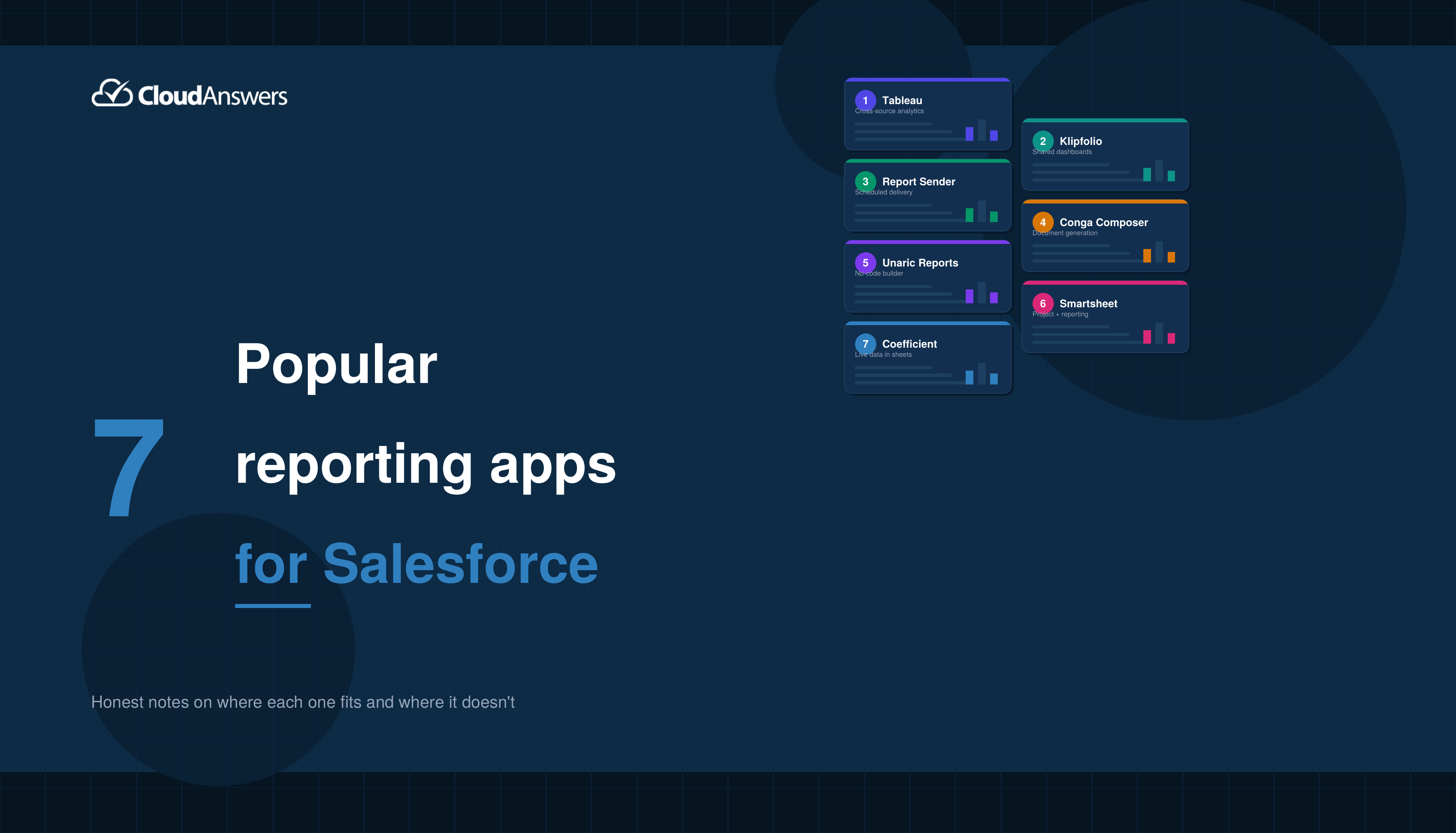
7 Popular Reporting Apps for Salesforce
The profit of your entire Salesforce investment depends a lot on the…
May 18, 2026
9 Min Read
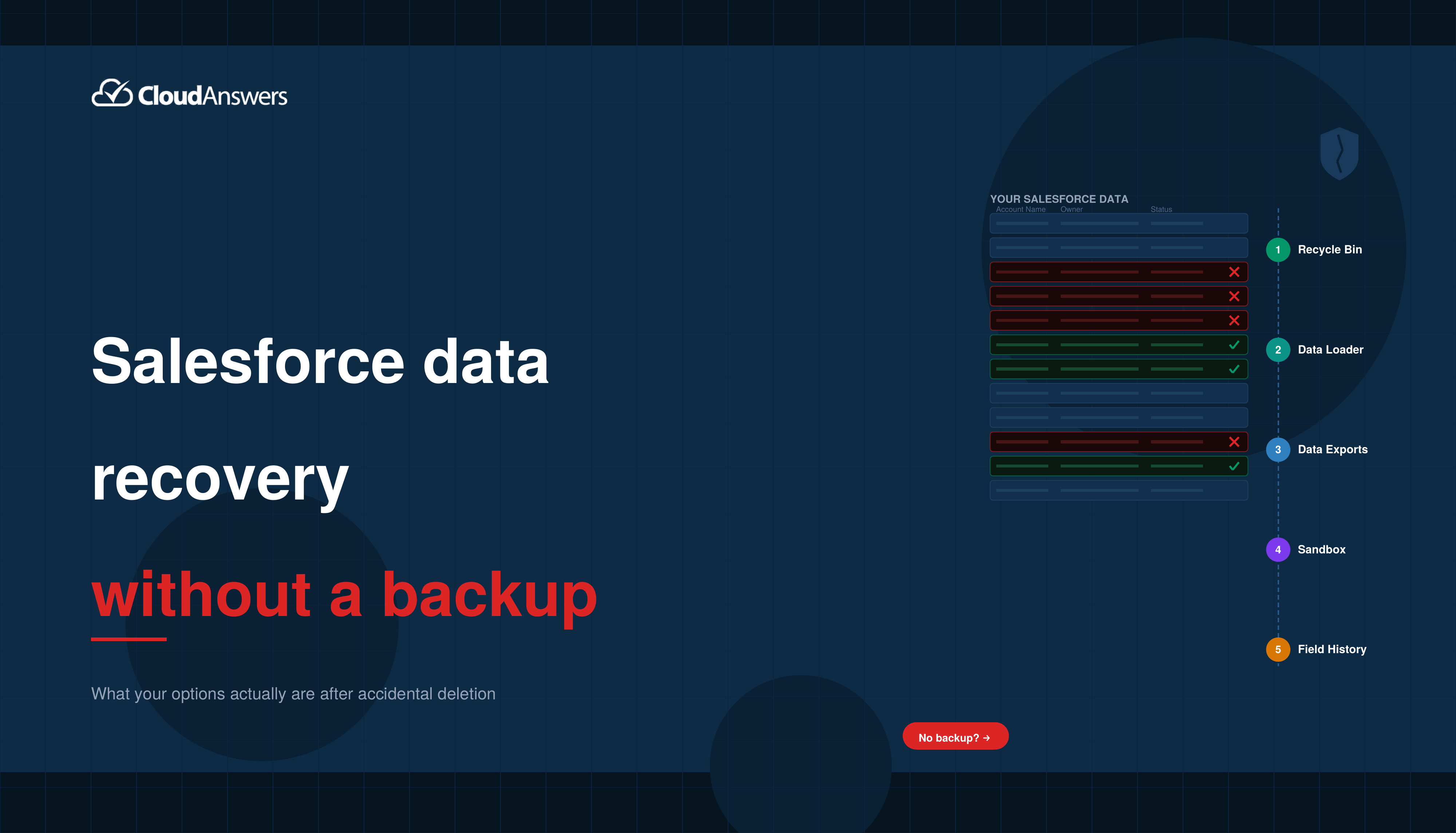
Salesforce Data Recovery Without a Backup: What Your Options Actually Are After Accidental Deletion
It happens to every Salesforce admin eventually. Maybe a user ran a…
April 24, 2026
12 Min Read

Partners

Company
Get in touch
Locations: New Hampshire, India, Maine, Colorado, Poland, Ukraine, Belarus
Email: help@cloudanswers.com
Phone: +1 508 500 8333