Salesforce Data Recovery Without a Backup: What Your Options Actually Are After Accidental Deletion
April 24, 2026 · 12 min read
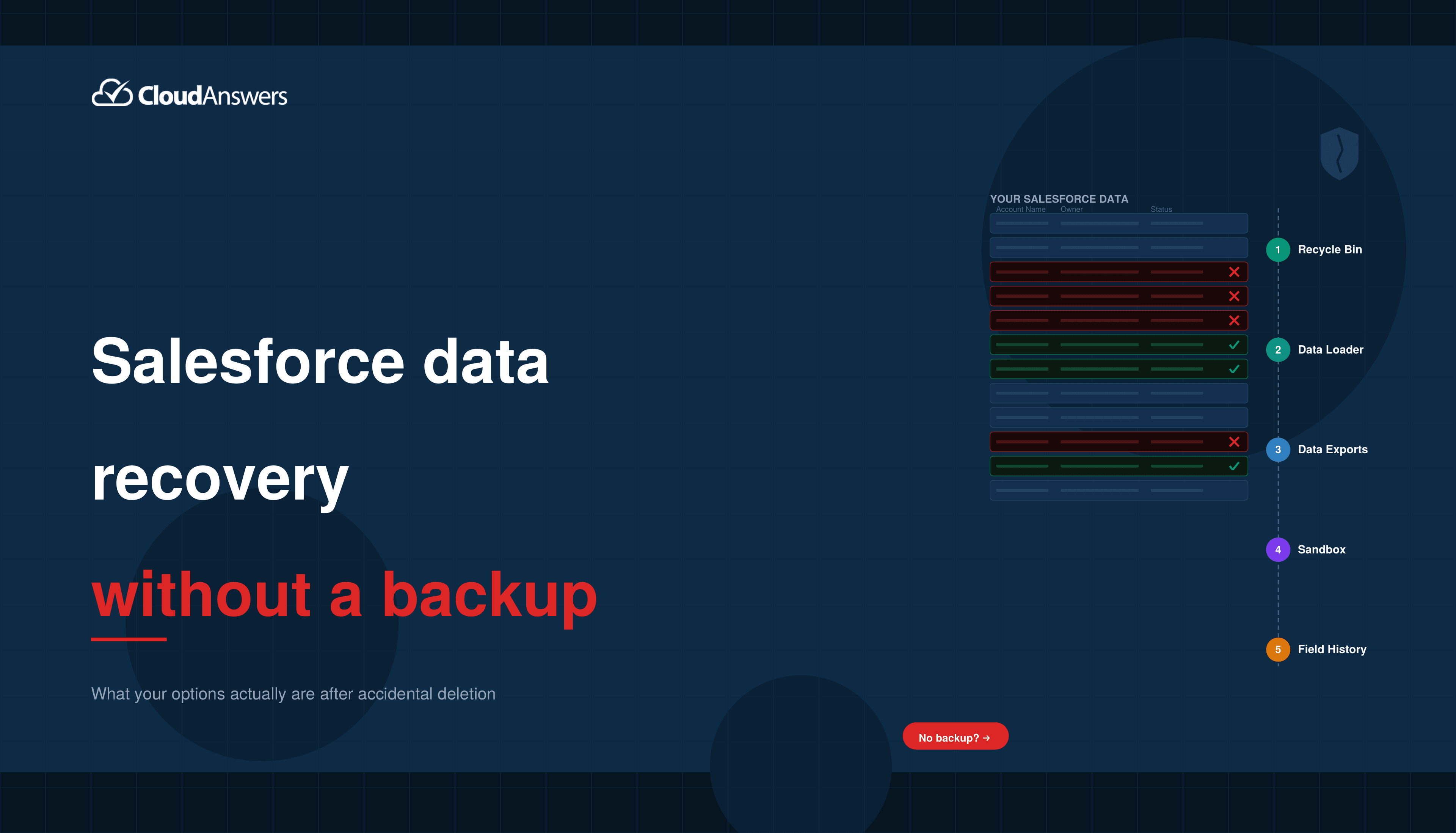
It happens to every Salesforce admin eventually. Maybe a user ran a mass delete they didn’t mean to. Maybe an automation fired on the wrong set of records. Maybe someone used Data Loader with the wrong CSV file and overwrote half your Accounts. Whatever the cause, you’re now staring at missing data and the sinking realization that you don’t have a backup to fall back on.
You’re not alone. Roughly 60% of Salesforce organizations are running without any third-party backup solution, and 53% of SaaS users reported data loss or corruption in the past year. So let’s skip the part where I tell you that you should have had a backup (you already know that), and focus on what you can actually do right now to recover your data.
First: Don’t Panic, and Don’t Touch Anything
Before you do anything else, stop making changes. Every action you take in Salesforce — including trying to “fix” things — could make recovery harder. If an automation caused the problem, disable it immediately. If a user is still actively deleting or modifying records, revoke their access. The goal right now is to freeze the situation so you can assess the damage clearly.
Take a breath, grab a notepad, and document what you know: what was deleted or changed, approximately when it happened, which objects are affected, and how many records you think are involved. This information will be critical no matter which recovery path you end up taking.
Option 1: The Recycle Bin (Your 15- to 30-Day Safety Net)
The Recycle Bin is the first place to look, and for straightforward deletions, it might be the only tool you need. When records are deleted in Salesforce, they aren’t immediately erased — they’re soft-deleted and moved to the Recycle Bin, where they sit for 15 days by default before being permanently purged.
One thing most admins don’t know: if your org still uses Salesforce Classic (or has it available), you can enable Extended Recycle Bin Retention to stretch that window to 30 days. You can enable it by contacting Salesforce Support to activate the feature, or in some orgs by going to Setup > User Interface and checking “Enable Extended Recycle Bin Retention.” This doesn’t help after records are already gone, but if you’re reading this before disaster strikes, it’s worth enabling now — doubling your recovery window costs nothing.
There are actually two layers to the Recycle Bin. Individual users can access their own deleted records. Admins can access the organization-wide Recycle Bin, which shows everything deleted by any user in the org. Navigate to the App Launcher, search for “Recycle Bin,” set the view to “All Recycle Bin” if you’re an admin, and start searching for your missing records.
A few things to know about the Recycle Bin that aren’t immediately obvious:
The Recycle Bin has a storage cap — it can hold up to 25 times your org’s data storage allocation in records. So if your org has 1 GB of data storage, the Recycle Bin can hold up to 25,000 records. If the bin fills up beyond that, the oldest records get purged first.
If a parent record was deleted and it cascade-deleted its child records, you only need to restore the parent. Salesforce will automatically restore the related children along with it. So if someone deleted an Account and its Contacts disappeared, find and restore the Account first — the Contacts should come back too.
And critically: if someone used the “Hard Delete” option in Data Loader, those records bypassed the Recycle Bin entirely. They won’t be there. Same thing if a user manually emptied their Recycle Bin after deleting records — once purged, the Recycle Bin can’t help you.
Option 2: The Recycle Bin, But With Data Loader (For Bulk Recovery)
If you need to restore a handful of records, clicking “Undelete” in the Recycle Bin interface works fine. But if someone deleted 10,000 Leads, you’re not going to do that one at a time.
This is where Data Loader becomes your friend. Here’s the process:
Open Data Loader and log in with admin credentials (you’ll need API Enabled and Modify All Data permissions). Choose “Export All” — this is different from a regular export because it includes deleted records that are still in the Recycle Bin. Run a SOQL query against the object you want to recover, filtering for deleted records. The query looks something like: SELECT Id, Name FROM Lead WHERE IsDeleted = TRUE. Export the results to a CSV file, review it to make sure you’re restoring the right records, and then use Data Loader’s “Undelete” operation to restore them in bulk.
You can also do this through Workbench if you prefer a browser-based tool — just enable the “Include Deleted and Archived Records” checkbox when running your SOQL query.
The important thing to understand here is that the Undelete operation preserves the original record IDs. The records come back exactly as they were, with their relationships intact. This is a huge advantage over re-creating records from scratch, which assigns new IDs and breaks all the existing links between objects.
One more thing: even after records are purged from the individual user’s Recycle Bin, they may still be accessible through the API for a short time before Salesforce completes the permanent purge. So even if a user says they “emptied the recycle bin,” it’s worth running that Data Loader Export All query to check.
Option 3: Check Your Data Exports
This isn’t technically “without a backup,” but you might have a backup you’ve forgotten about. Salesforce’s built-in Data Export Service lets admins schedule weekly or monthly data exports to CSV files. The files are available for download for 48 hours after they’re generated.
Go to Setup > Data > Data Export and check if anyone in your org has been running scheduled exports. If you’re lucky, there’s a recent export sitting there that contains the records you need. Even if the export doesn’t have everything, partial data recovery is better than no data recovery.
The catch: if the export was generated before the deletion happened and you downloaded it, great — you can use Data Loader to re-import the records from those CSV files. If nobody downloaded the export within 48 hours, the files are gone and can’t be recovered.
Also worth checking: does anyone on the team have an old data export sitting in their Downloads folder? It sounds silly, but you’d be surprised how often this is the thing that saves the day.
Option 4: Check Your Sandboxes
Here’s another source of data that people often overlook. If your org has a Full Copy Sandbox that was recently refreshed, it contains a snapshot of your production data at the time of the refresh. If the records you lost existed when the sandbox was created, they’re still in there.
To recover data from a sandbox, log into the sandbox environment, use Data Loader or a report to export the records you need, then import them back into your production org. Just keep in mind that since these records will be inserted as new records, they’ll get new Salesforce IDs. You’ll need to carefully manage the relationships between parent and child records — import parents first, get their new IDs, update the child records’ lookup fields, then import the children.
Partial Copy and Developer sandboxes don’t include all your data, so they’re less helpful here, but it’s still worth checking if they have any of the records you’re missing.
Option 5: Reconstruct From Related Records and Field History
When all else fails, sometimes you can piece together lost data from what’s still in Salesforce. This is tedious and imperfect, but it’s better than nothing.
Field History Tracking, if it was enabled on the affected objects before the deletion, keeps a log of changes to tracked fields. While it won’t give you complete records, it can help you reconstruct field values. Check Setup > Object Manager > [Your Object] > Fields & Relationships > Set History Tracking to see which fields were being tracked.
You can also look at related records that weren’t cascade-deleted along with the Contact. Cases are a good example. Cases have a lookup relationship to Contact rather than a cascade-delete relationship, so when a Contact is deleted, related Cases survive (the ContactId field just goes blank).
Those Cases often contain the contact name, email address, phone number, and account context you need to rebuild the Contact record. Account records, Opportunities the Contact was associated with through Opportunity Contact Roles, and any custom objects with non-cascading lookups to Contact are also worth checking.
Option 6: Salesforce Support (The Expensive Last Resort)
Salesforce’s Data Recovery Service has had a complicated history. It was retired in July 2020, brought back briefly in March 2021, and then re-retired in November 2021 in favor of Salesforce’s own Backup and Restore product. But even when it was available, it was never a great option — it cost $10,000 per recovery, took 6-8 weeks, didn’t guarantee 100% data recovery, and delivered data as raw CSV files that you had to manually re-import.
As of today, the official guidance from Salesforce is to use either their native Backup and Restore tool (a paid add-on), a partner solution from the AppExchange, or your own data export files. If you’re in a truly desperate situation, it’s still worth opening a case with Salesforce Support and explaining what happened. Depending on your edition and contract, they may be able to help — but set realistic expectations about cost, timeline, and completeness.
What You Can’t Recover
Let’s be honest about the limits. Some types of data loss in Salesforce are effectively permanent if you don’t have a backup:
Overwritten data is the big one. The Recycle Bin only catches deletions. If someone ran a Data Loader update that overwrote field values across 50,000 records with incorrect data, those original values are gone unless you have field history tracking or a backup. There’s no “undo” for an update operation.
Metadata changes are trickier than they appear. Deleted custom fields don’t go to the Recycle Bin — instead, they move to a “Deleted Fields” section in Object Manager, where they remain recoverable for 15 days with all their data intact. After that 15-day window, the field definition and all data in that field are permanently erased. So if someone accidentally deletes a custom field, check Object Manager > [Object Name] > Fields & Relationships > Deleted Fields immediately. Other metadata like page layouts, Flows, and validation rules don’t have this grace period and generally can’t be recovered natively — you’d need to recreate them from scratch or restore from a metadata backup.
Files and Attachments that were hard-deleted are typically unrecoverable. The Recycle Bin does capture deleted files, but once purged, they’re gone.
Records older than the retention window are permanently purged. Once the default 15 days pass (or 30 days if you’ve enabled Extended Recycle Bin Retention) and the Recycle Bin has been cycled, there’s no native mechanism to get those records back.
How to Make Sure This Never Happens Again
Now that you’ve survived (or are surviving) a data loss event, you’re probably more motivated than ever to prevent the next one. Here’s what to actually do:
Turn on the Data Export Service today. Right now. Go to Setup > Data > Data Export and schedule weekly exports. It’s free, it takes two minutes, and it creates a baseline backup that could save you in a future emergency. Yes, you have to manually download the files, and yes, it’s not a perfect solution — but it’s infinitely better than nothing.
Enable Extended Recycle Bin Retention. If your org has access to Salesforce Classic, enable the Extended Recycle Bin Retention feature to extend the retention window from 15 to 30 days. It’s a free setting that doubles your recovery window — there’s no reason not to turn it on.
Enable Field History Tracking on critical objects. It won’t prevent data loss, but it gives you a paper trail that makes reconstruction possible. Focus on the objects that matter most — Accounts, Contacts, Opportunities, Cases — and track the fields that would be hardest to rebuild.
Review permissions regularly. Not every user needs the ability to mass-delete records. Restrict delete access through profiles and permission sets, especially for standard users. Require approval processes for bulk operations. The fewer people who can cause large-scale damage, the lower your risk. Understanding how profiles and permissions work is essential for any admin managing data security.
Audit your automations. Flows, triggers, and integrations are the most common sources of accidental bulk data modification. Before deploying any automation that touches records at scale, test it thoroughly in a sandbox. And document what each automation does — when things go wrong, you need to diagnose the cause fast.
Set up a real backup solution. The native Data Export Service is a start, but it has real gaps — no metadata coverage, no automated restore, no incremental backups. The Salesforce ecosystem has plenty of options at every price point. Salesforce itself signaled just how critical this space is when it signed a definitive agreement to acquire Own Company for $1.9 billion in September 2024. Whether you go with an enterprise-grade platform or a simpler, more affordable solution, the point is to have something in place before the next incident.
If you’re running bulk operations, back up first. About to merge a bunch of duplicate records? Running a large data migration? Doing a major cleanup? Take a manual backup of the affected objects before you start. A quick Data Loader export takes minutes and could save you days of recovery work.
The Bottom Line
Salesforce data recovery without a backup is possible in some scenarios, but it’s never easy, it’s never complete, and it’s always stressful. The Recycle Bin covers simple deletions within a 15-day window (or 30 days with Extended Retention enabled). Data Loader can bulk-restore soft-deleted records. Old exports, sandboxes, and related records can help you reconstruct what’s been lost. But for overwrites, metadata deletions, and anything outside that retention period, you’re largely out of luck without an external backup.
The best time to set up a backup was before the deletion happened. The second best time is right after you’ve finished recovering from this one.
Related Articles
10 Salesforce Permissions You Should Almost Never Assign to Users
If you have ever inherited a Salesforce org and opened up the…
June 30, 2026
17 Min Read
7 Popular Reporting Apps for Salesforce
The profit of your entire Salesforce investment depends a lot on the…
May 18, 2026
9 Min Read
How to Build a Salesforce Backup Strategy: What to Back Up, How Often, and Where to Store It
If you’ve ever read a blog post about Salesforce backup that left…
April 30, 2026
16 Min Read

Partners

Company
Get in touch
Locations: New Hampshire, India, Maine, Colorado, Poland, Ukraine, Belarus
Email: help@cloudanswers.com
Phone: +1 508 500 8333